Documentation
The Paesa user guide.
Step-by-step instructions for every part of Paesa — the exact fields, buttons, and shortcuts you'll see on screen, in the order you'll use them. Written to be enough on its own; screenshots are being layered in alongside it.
Start Here
Getting Started
Masters
Accounting Masters
Masters
Inventory Masters
Masters
Cost Centres, Budgets & Scenarios
Masters
Statutory Masters
Masters
Currency, Pricing & Voucher Numbering
Day-to-Day
Vouchers
Day-to-Day
Manufacturing & Job Work
Day-to-Day
Physical Stock Verification
Day-to-Day
Banking & Reconciliation
Reports
Financial Statements
Reports
Inventory & Stock Reports
Reports
Outstandings & Bills
Reports
Sales, Purchase & Party Reports
Reports
Cash & Bank Reports
Compliance
GST Filing & e-Invoicing
Compliance
GST Reports
Compliance
TDS & TCS
Compliance
Payroll & HR
Automation
WhatsApp CRM
Automation
AI Copilot & Automation
Reference
Multi-Company & Security
Reference
Audit Trail, Edit Log & Exceptions
Reference
Navigation & Shortcuts
What's Next
Roadmap
Start Here
Getting Started
Create your company, then turn on only the statutory features you actually need.
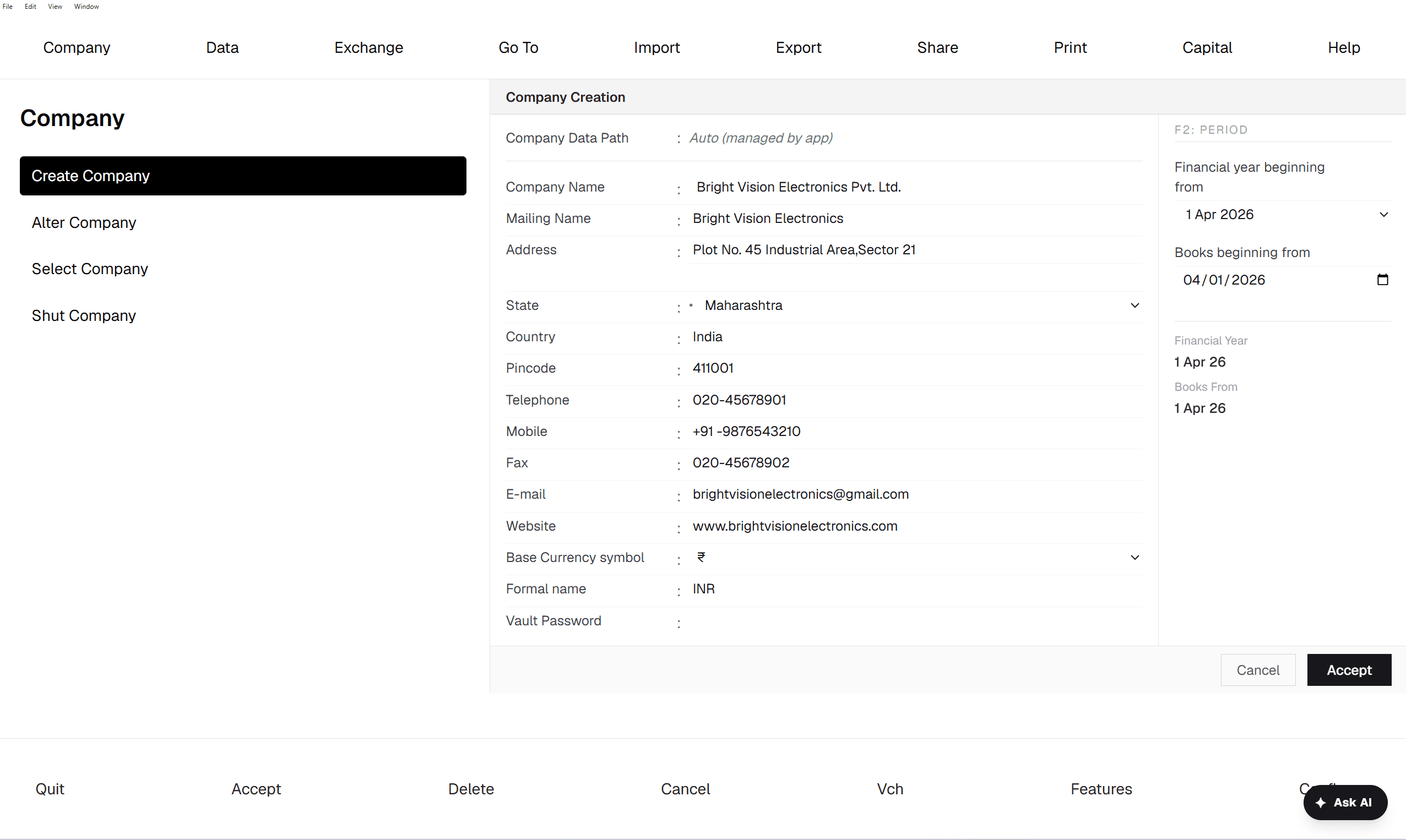
Navbar → Company → Create
- 1Open the Company menu on the navbar and choose Create.
- 2Type the Company Name — this is the only required field on the whole form. Everything else can be filled in later from Company → Alter.
- 3Fill in Mailing Name and Address if you want them to appear on printed vouchers, followed by State, Country, and Pincode.
- 4Set contact details — Telephone, Mobile (pre-filled with "+91 -"), Fax, E-mail, and Website.
- 5Confirm the Base Currency symbol (₹ by default) and its Formal name (INR) — change these only if you're not billing in rupees.
- 6On the right, under F2: Period, check Financial year beginning from and Books beginning from — both default to 1 April of the current year. Change them if you're starting the company mid-year.
- 7Click Accept to create the company, or Cancel to discard the form.
After the company exists
- 1Turn on the statutory features you need — GST, TDS, TCS, Payroll — from Company Features. This gates which extra fields later appear on Ledgers and Stock Items, so switch on only what you'll actually use.
- 2To bring in existing books, use Import from the navbar with a Tally XML export or a structured Excel sheet, instead of re-entering everything by hand.
- 3You can create more companies at any time and switch between them — see Multi-Company & Security below.
- Company Name is the only mandatory field on the create form — you're never blocked from finishing setup later.
Masters
Accounting Masters
The chart of accounts and the building blocks every voucher posts against.
Gateway → Masters → Create
Create a Ledger
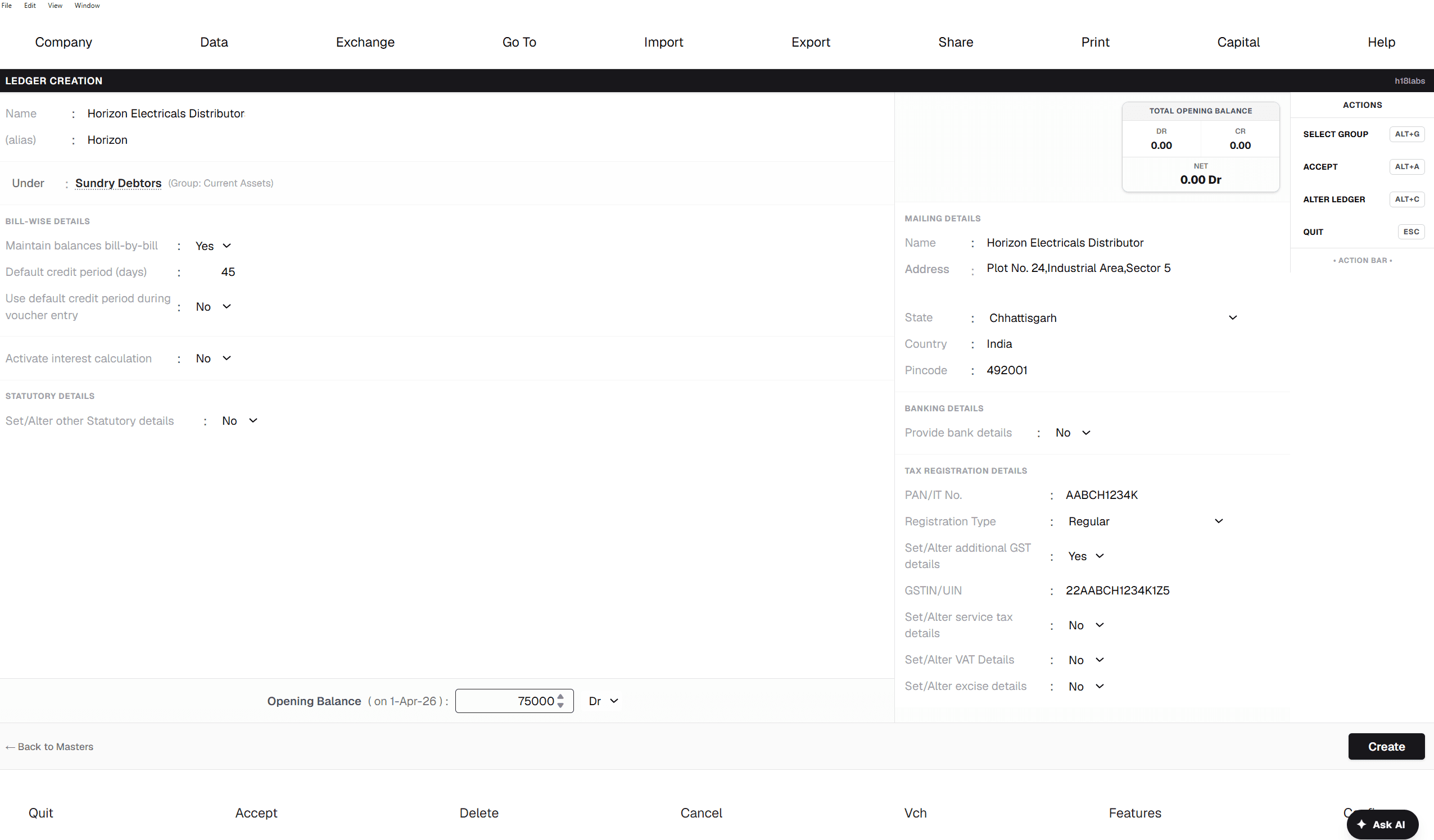
- 1From Masters → Create, choose Ledger.
- 2Type the Name, then press Enter to move to Under and pick the parent Group — this single choice decides the ledger's nature (Asset, Liability, Income, or Expense) and which extra fields show up next. Press Alt+G at any time to reopen the group picker.
- 3If the parent group is a Duties & Taxes type, Type of Duty/Tax and Percentage fields appear. If it's a Sundry Debtor or Creditor group, Bill-wise Details and interest-calculation options appear instead.
- 4Under Statutory Details, set GST applicability, HSN/SAC, and GST Rate — or leave each one on "As per Company/Group" to inherit the default instead of repeating it on every ledger.
- 5If the ledger already carries a balance, enter it under Opening Balance and mark it Dr or Cr.
- 6Press Alt+A (or click Create) to save. Esc quits without saving; Alt+C jumps straight to Alter if you're fixing an existing ledger instead of creating a new one.
Create a Group
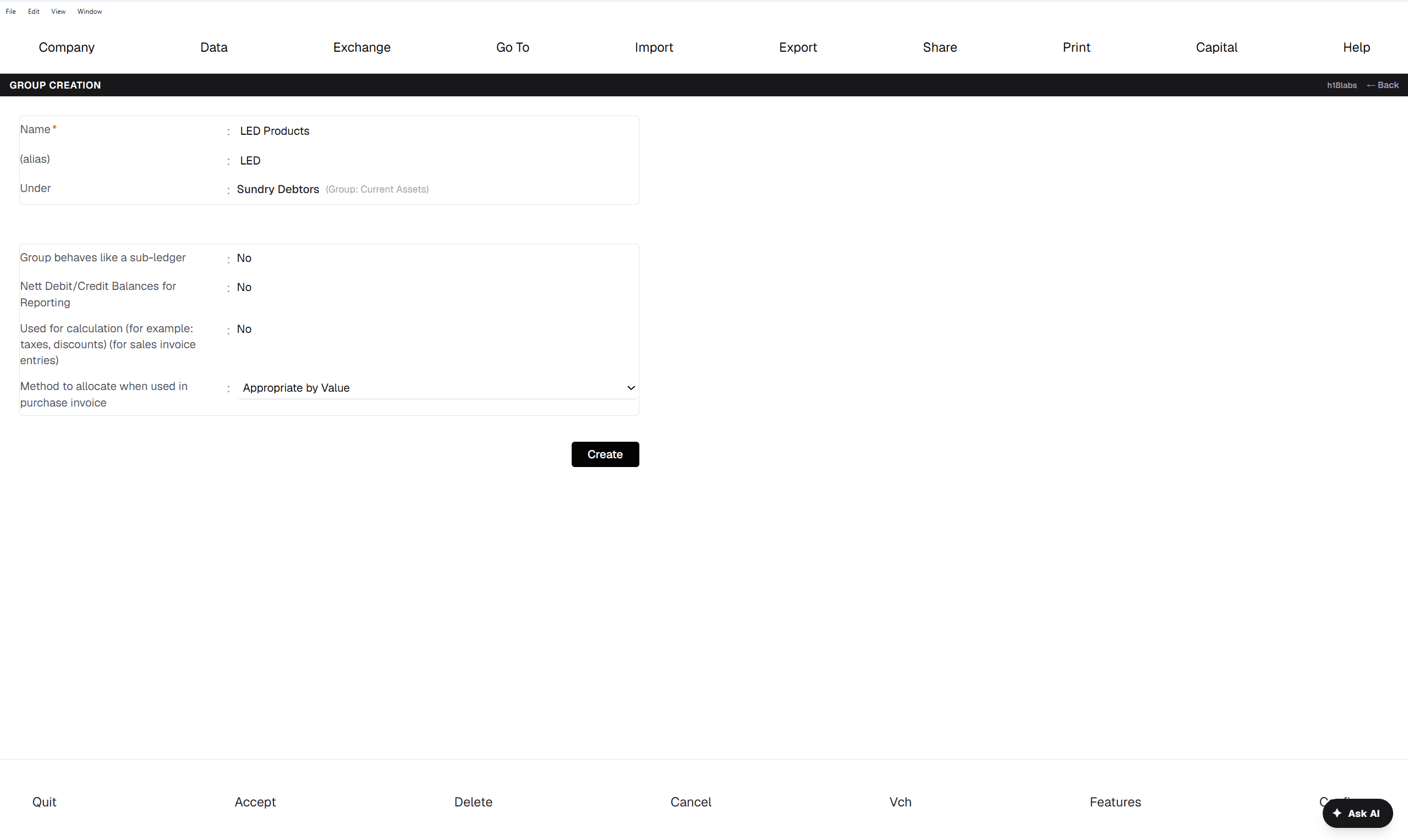
- 1From Masters → Create, choose Group.
- 2Type the Name and pick Under — it defaults to Capital Account. Only if you're creating a new top-level (Primary) group do you also set its Nature of Group: Assets, Liabilities, Income, or Expenses.
- 3Turn on "Used for calculation (for example: taxes, discounts)" if this group should apply automatically on sales invoice entries, such as a rounding or freight group.
- 4Set "Method to allocate when used in purchase invoice" if the group needs quantity- or value-based apportioning.
- 5Press Create to save.
Keyboard shortcuts
Masters
Inventory Masters
Everything that describes what you stock and where it lives.
Gateway → Masters → Create
Create a Stock Item
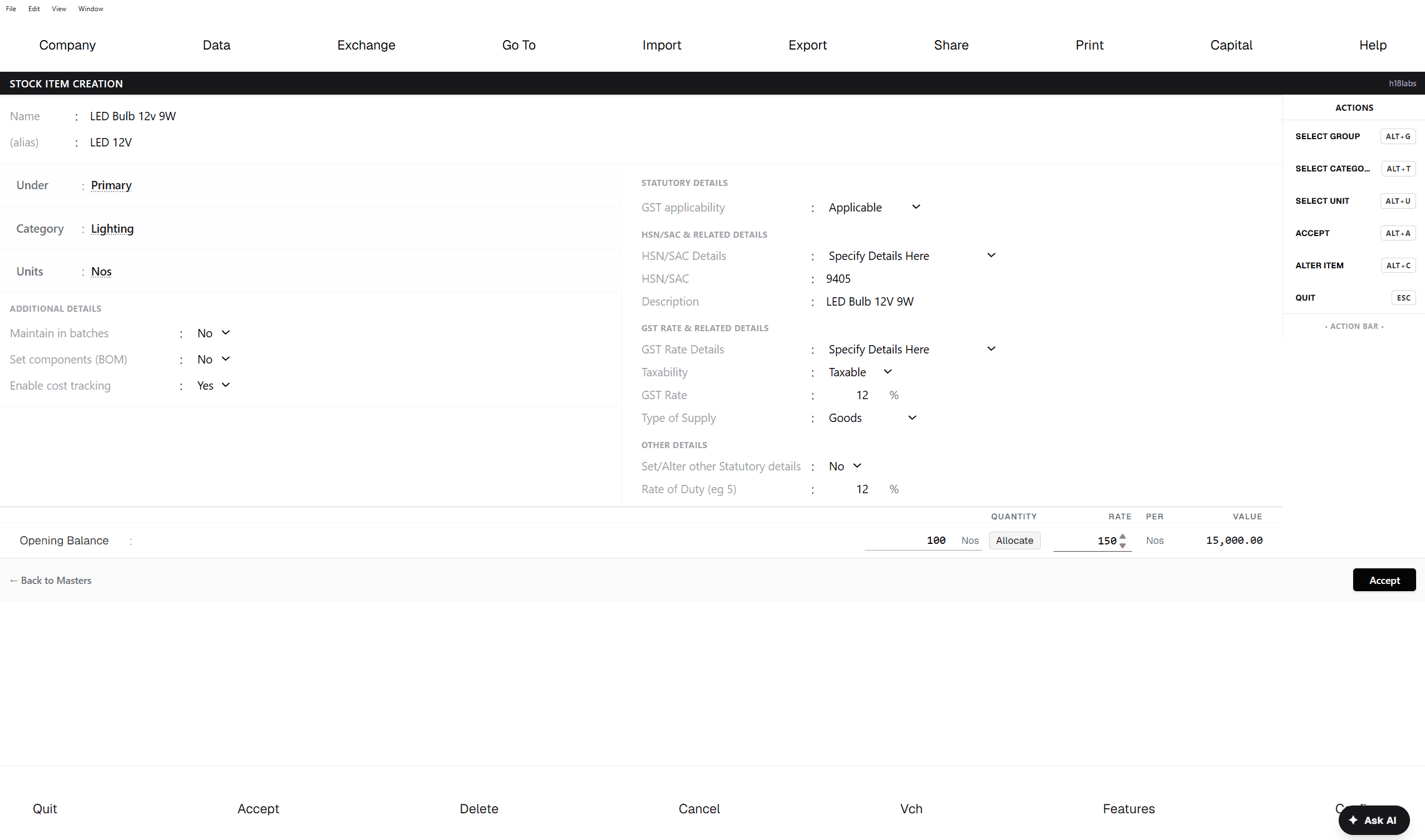
- 1From Masters → Create, choose Stock Item.
- 2Type the Name, set Under (its Stock Group), and press Alt+U to set Units — units support compound forms, like a box of 12 pieces.
- 3Turn on "Maintain in batches" if you need batch tracking — this reveals "Track date of manufacturing" and "Use expiry dates" underneath it.
- 4Turn on "Set components (BOM)" if the item is manufactured from other items, and "Enable cost tracking" for job-work or landed-cost items.
- 5Under GST details, set Taxability Type, HSN/SAC, and GST Rate — or leave them to inherit from the Company or Group, same as on a Ledger.
- 6If there's existing stock, enter the Opening Balance Quantity and Rate; Value is calculated for you. If the item tracks batches or godowns, an Allocate button appears so you can split that opening quantity across them before saving.
- 7Press Alt+A to save.
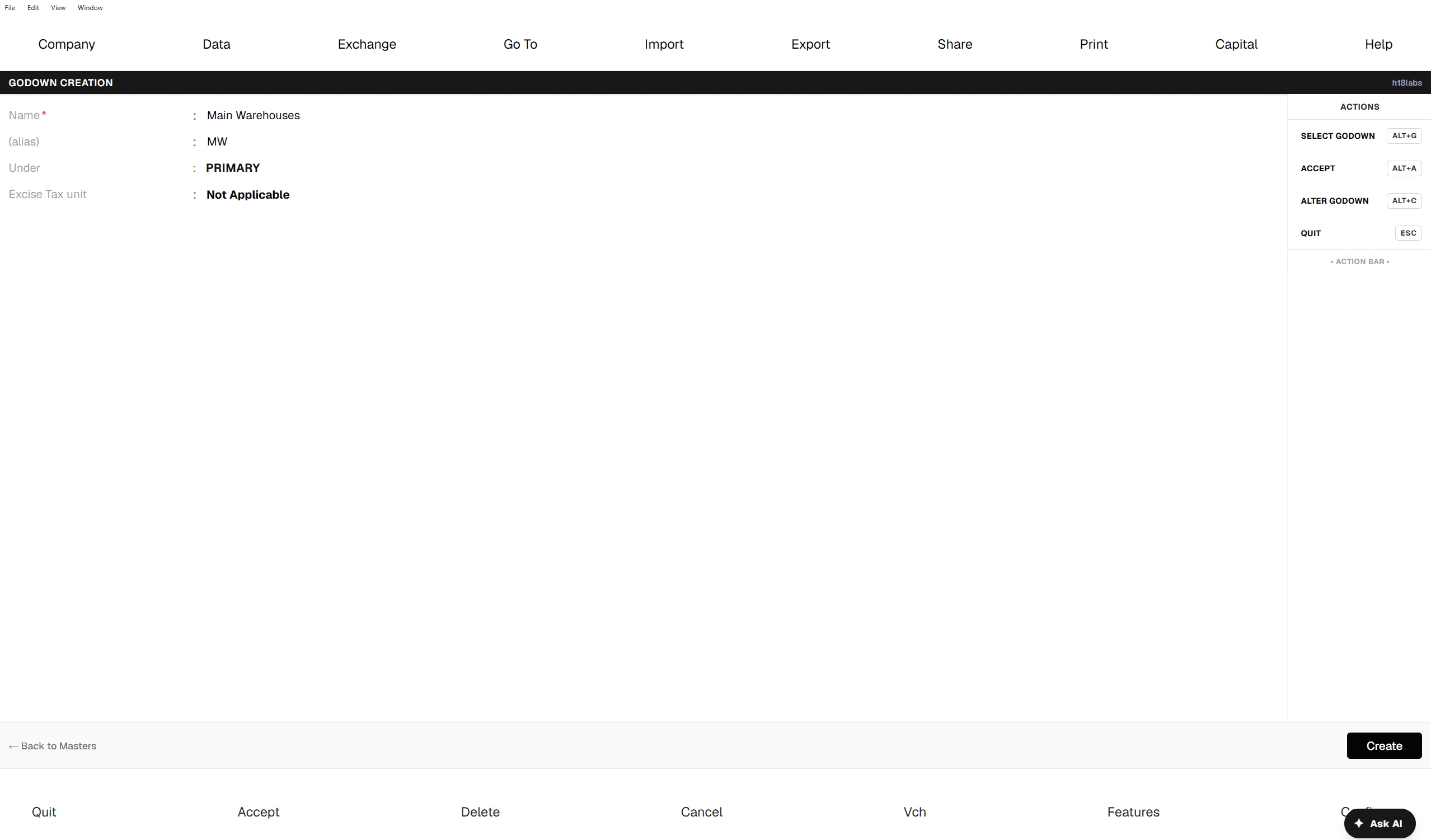
Create a Godown
- 1From Masters → Create, choose Godown.
- 2Type the Name, and set Under to a parent godown if this is a sub-location (defaults to Primary).
- 3Set Excise Tax unit if it applies, otherwise leave it as "Not Applicable".
- 4Press Create to save.
Keyboard shortcuts
Masters
Cost Centres, Budgets & Scenarios
Track cost by department or project, plan against a budget, and model "what-if" reporting that never touches the real books.
Gateway → Masters → Create
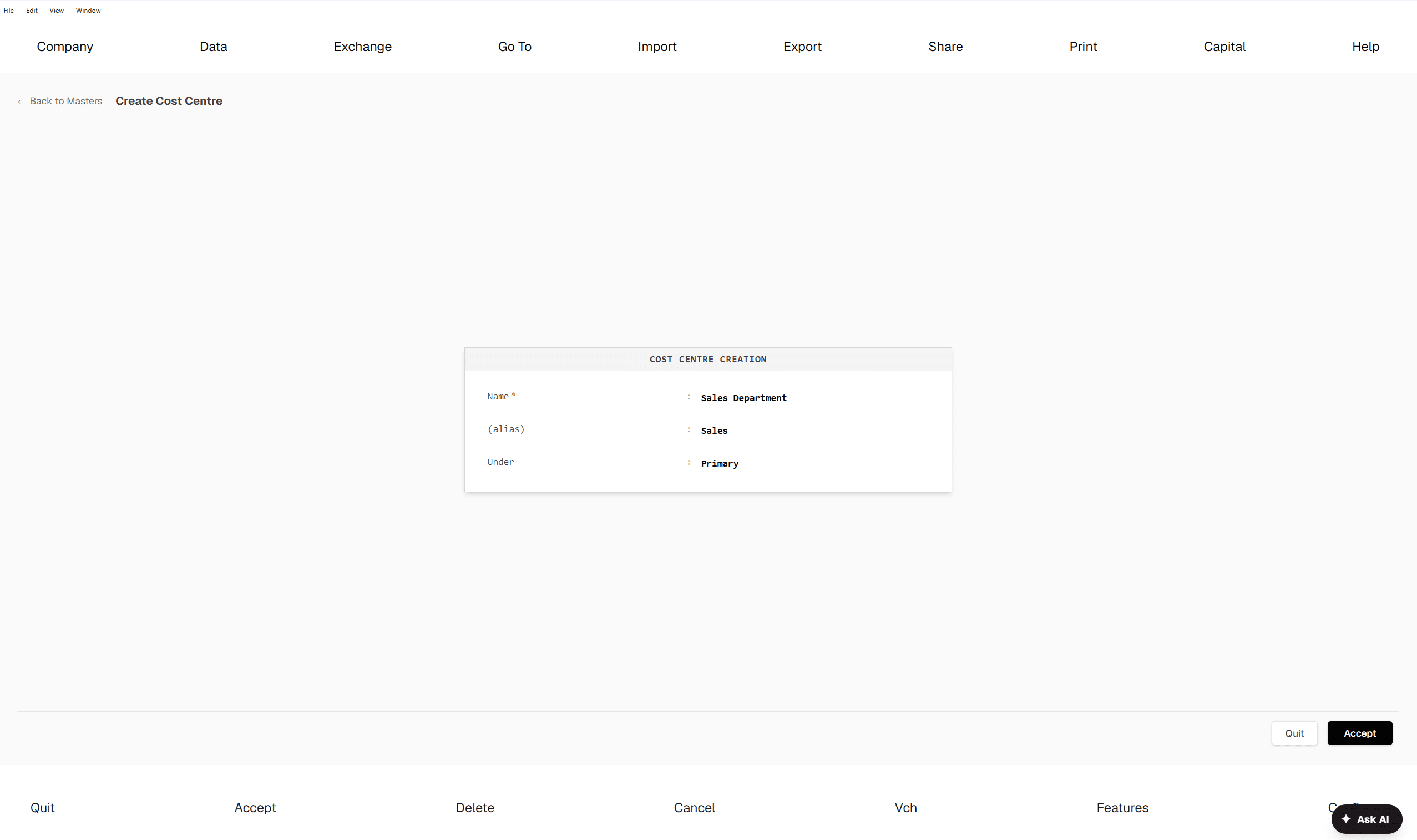
Cost Centre & Cost Category
- 1Create a Cost Centre to track income and expense by department, project, or branch — type the Name and set Under if it's a sub-centre of an existing one.
- 2Create a Cost Category first if you need two independent tracking dimensions on the same voucher at once (say, both "Department" and "Project") — a category lets you turn Allocate Revenue Items and Allocate Non-Revenue Items on or off separately.
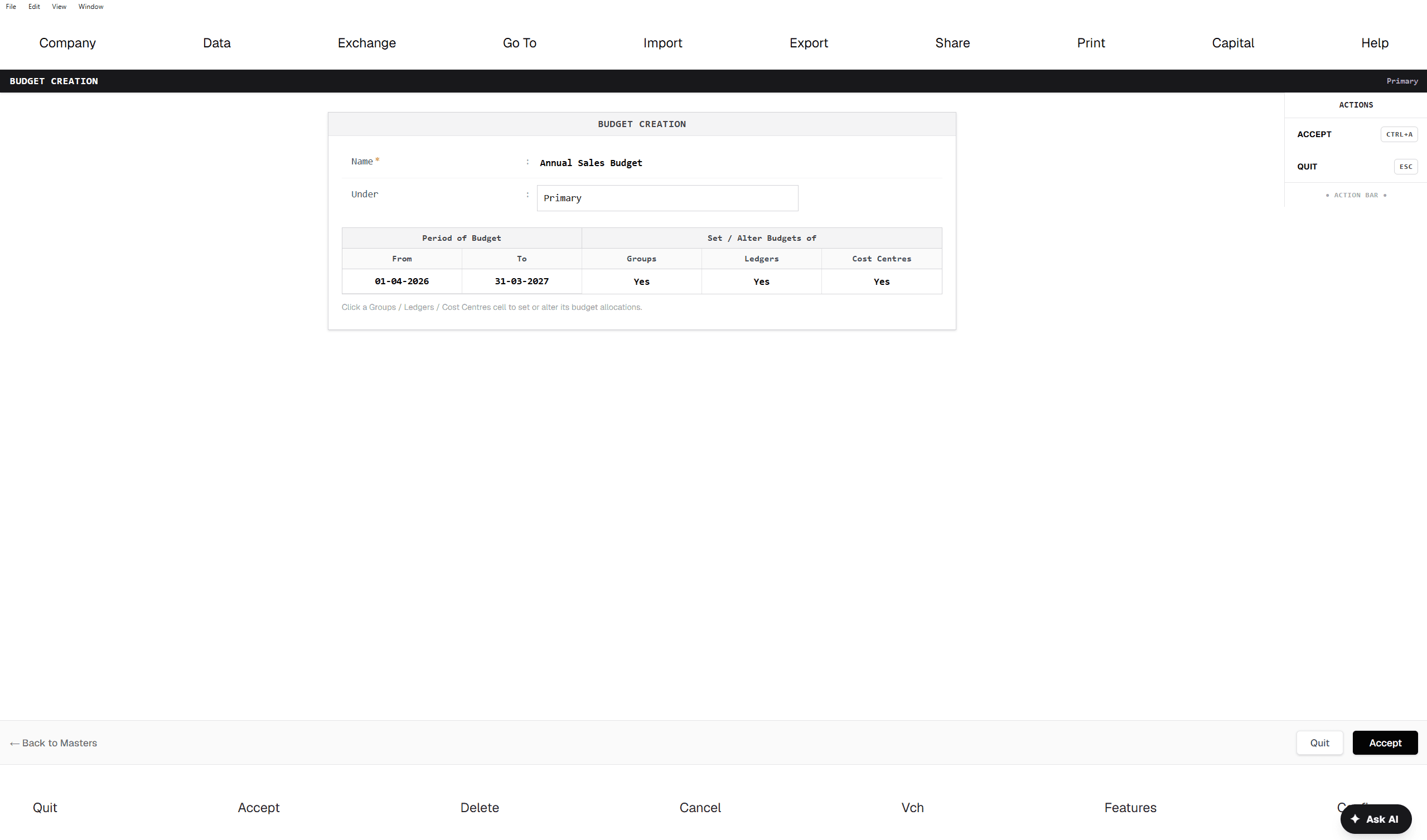
Budget
- 1Create a Budget: name it, set Under if it extends another budget, then set its Period — a From and To date.
- 2Click into Groups, Ledgers, or Cost Centres on that period row to open the allocation editor, and set a Type of Budget — On Closing Balance or On Nett Transactions — plus an Amount for each account you want to track.
- 3Once vouchers start posting against those accounts, Budget vs Actual is available as its own report.
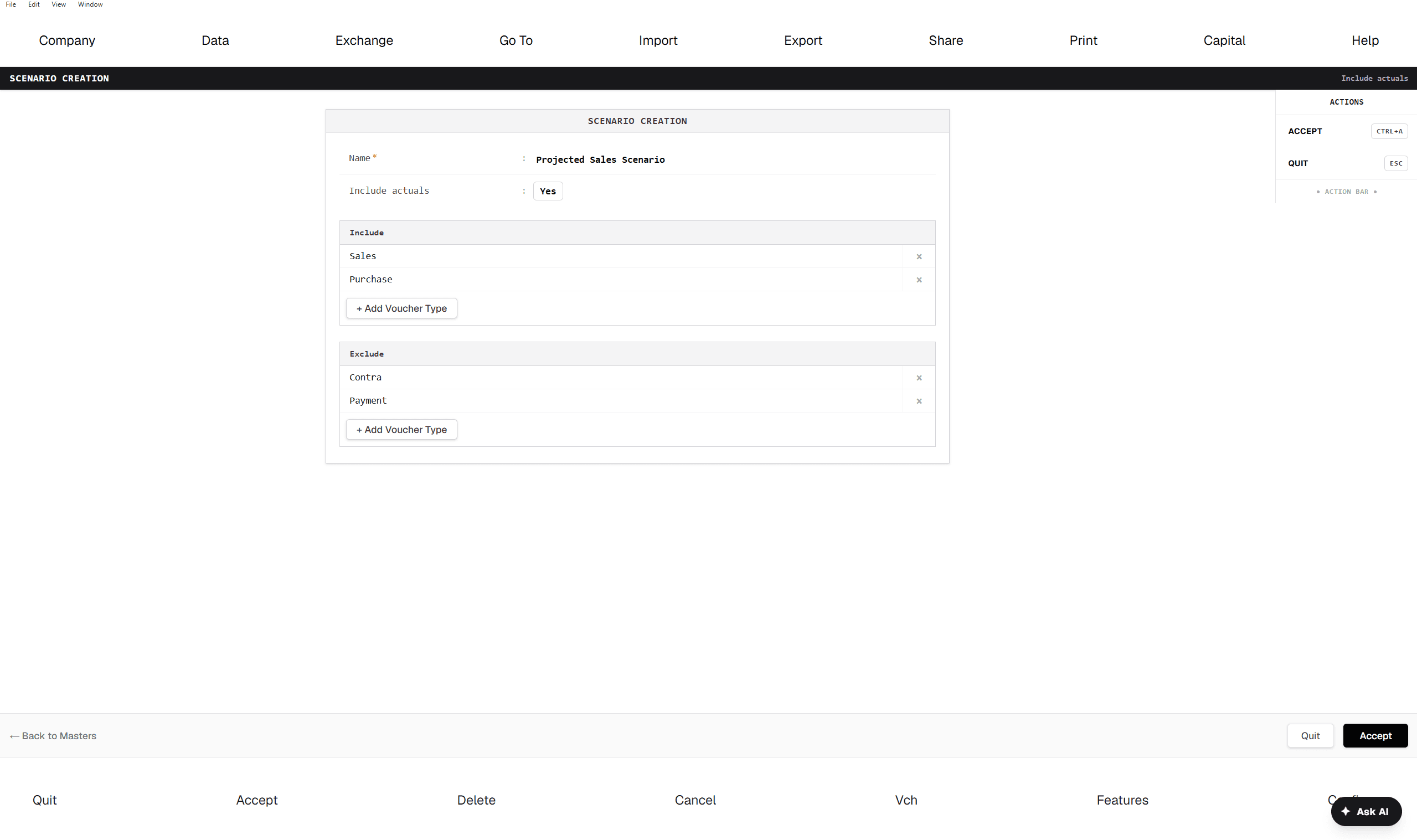
Scenario
- 1Create a Scenario to see "what-if" reporting without touching real books — name it, and decide whether it should Include actuals alongside its own entries.
- 2Build Include and Exclude lists of voucher types — for example, include Optional or Provisional vouchers in one scenario and exclude them in another — to control exactly what each scenario's reports reflect.
- Budget and Scenario screens accept with Ctrl+A specifically, rather than the Alt+A used on most other masters.
Masters
Statutory Masters
The GST, TDS, and TCS building blocks that ledgers, stock items, and vouchers all read from.
Gateway → Masters → Create → Statutory
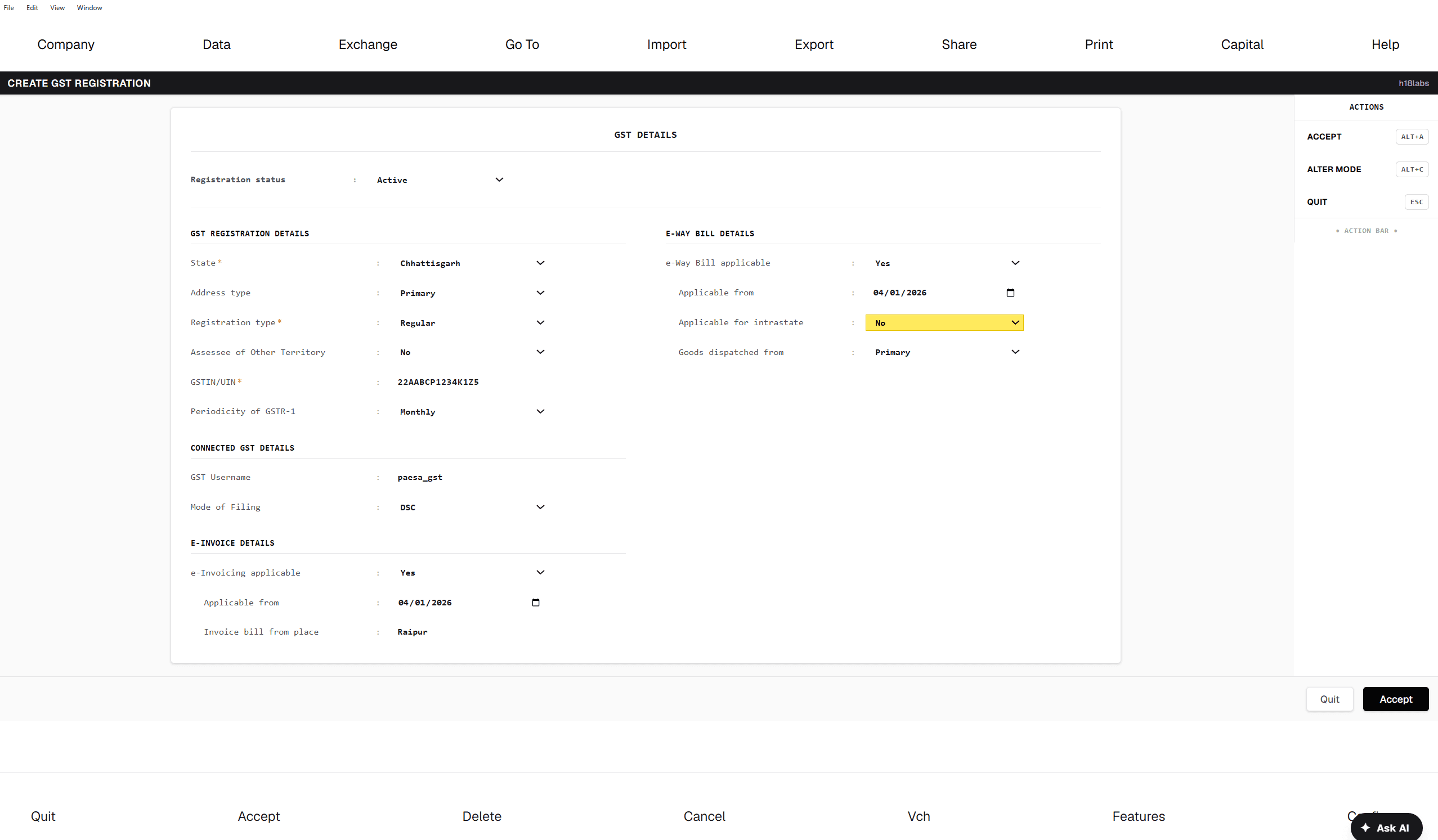
GST Registration
- 1Create a GST Registration for the company: set Registration Status, State, Address Type, and Registration Type — Regular or Composition.
- 2Enter the GSTIN — if the format looks off, the app asks you to confirm before accepting it anyway rather than blocking you outright.
- 3Set Periodicity of GSTR-1 (Monthly, Quarterly, Annual) if you're Regular, or a Composition Tax Rate if you're on Composition.
- 4Turn on E-Invoice Application and E-Way Bill Applicable if either applies, with their applicable-from dates — this is what unlocks the e-Invoice and e-Way Bill actions on vouchers covered under GST Filing & e-Invoicing.
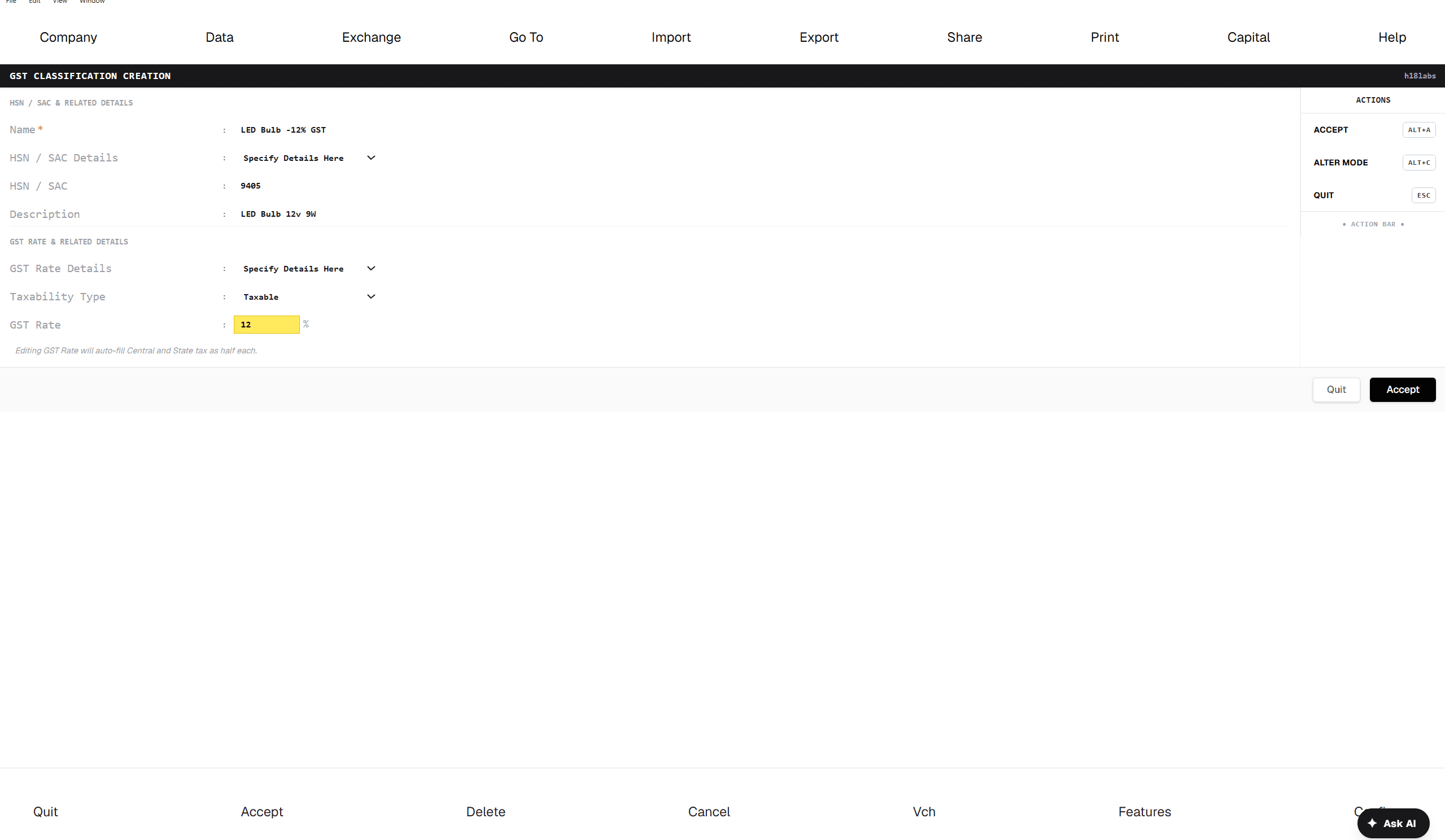
GST Classification
- 1Create a GST Classification when you want one reusable tax profile you can apply across many ledgers or stock items, instead of setting HSN/SAC and rate on each one individually.
- 2Set GST Rate Details to Specify Details Here for a flat rate, or Specify Slab-Based Rates to define rate bands by quantity or value.
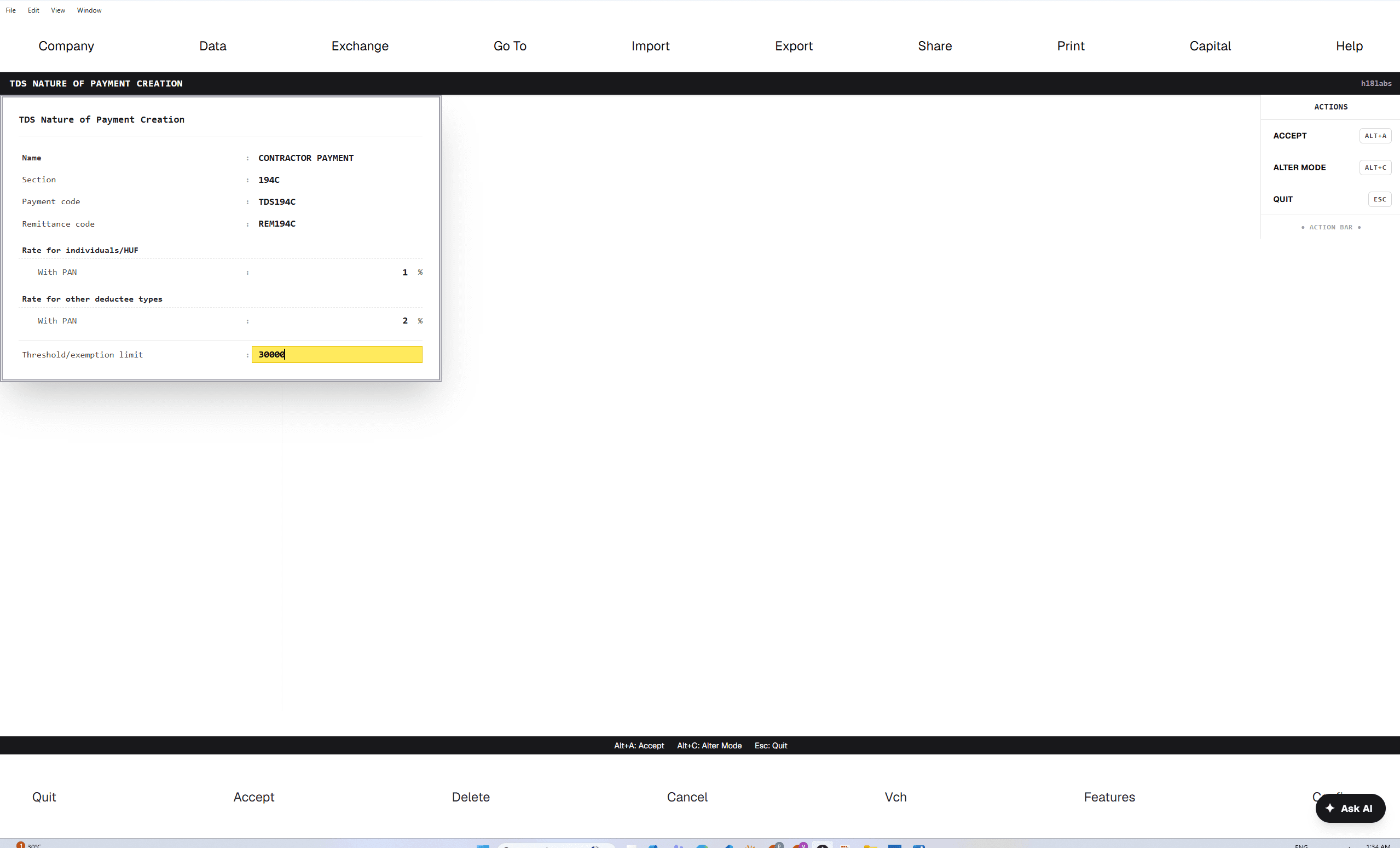
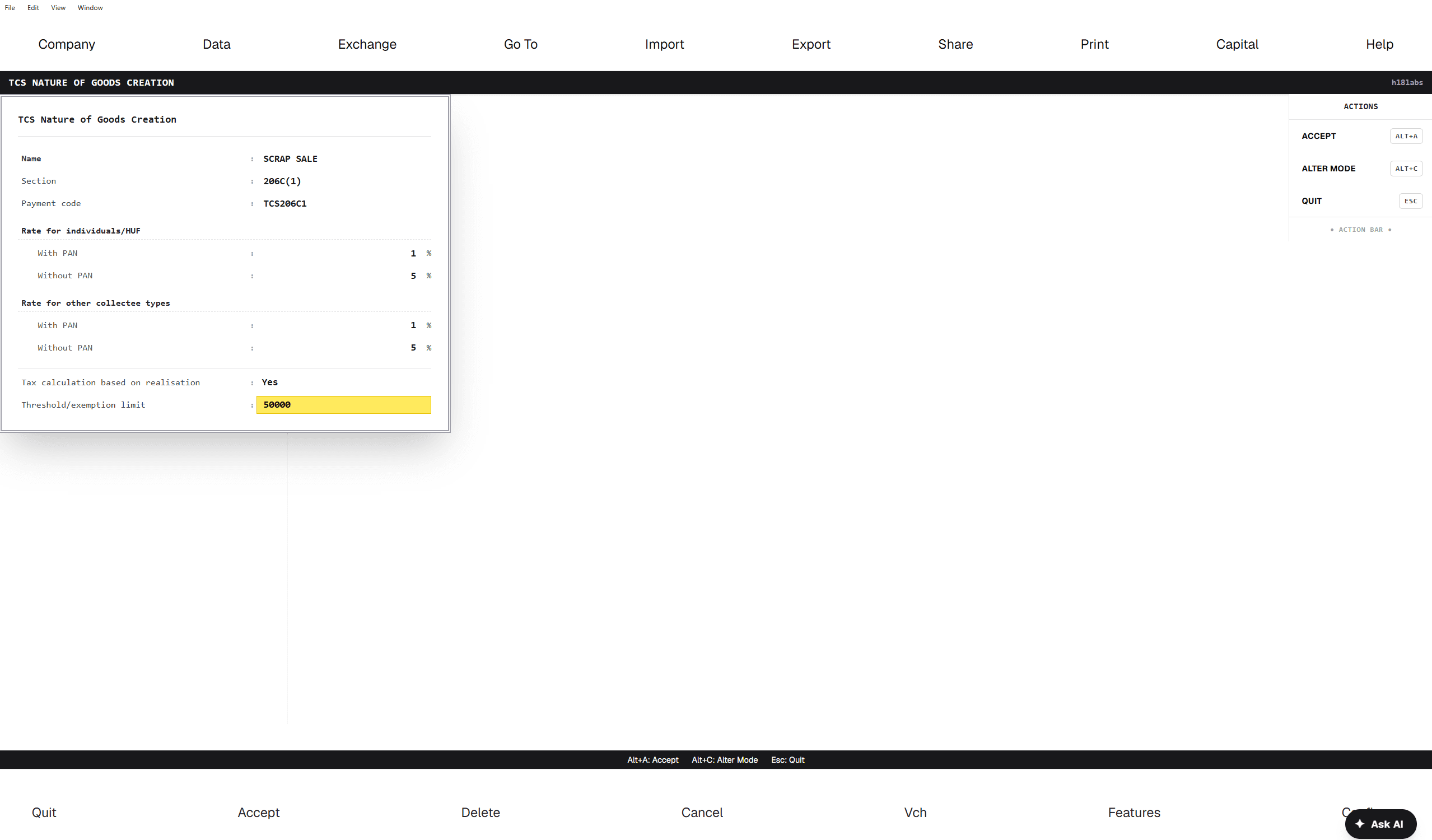
TDS Nature of Payment & TCS Nature of Goods
- 1Create a TDS Nature of Payment for each deduction section you use (for example, 194A) — set its Section, rates for individual and other deductees with and without PAN, and a Threshold Limit if one applies.
- 2TCS Nature of Goods follows the same pattern on the collection side.
- 3Mark either Is Zero Rated if it shouldn't attract tax at all — this option only appears once all of its rate fields are at zero.
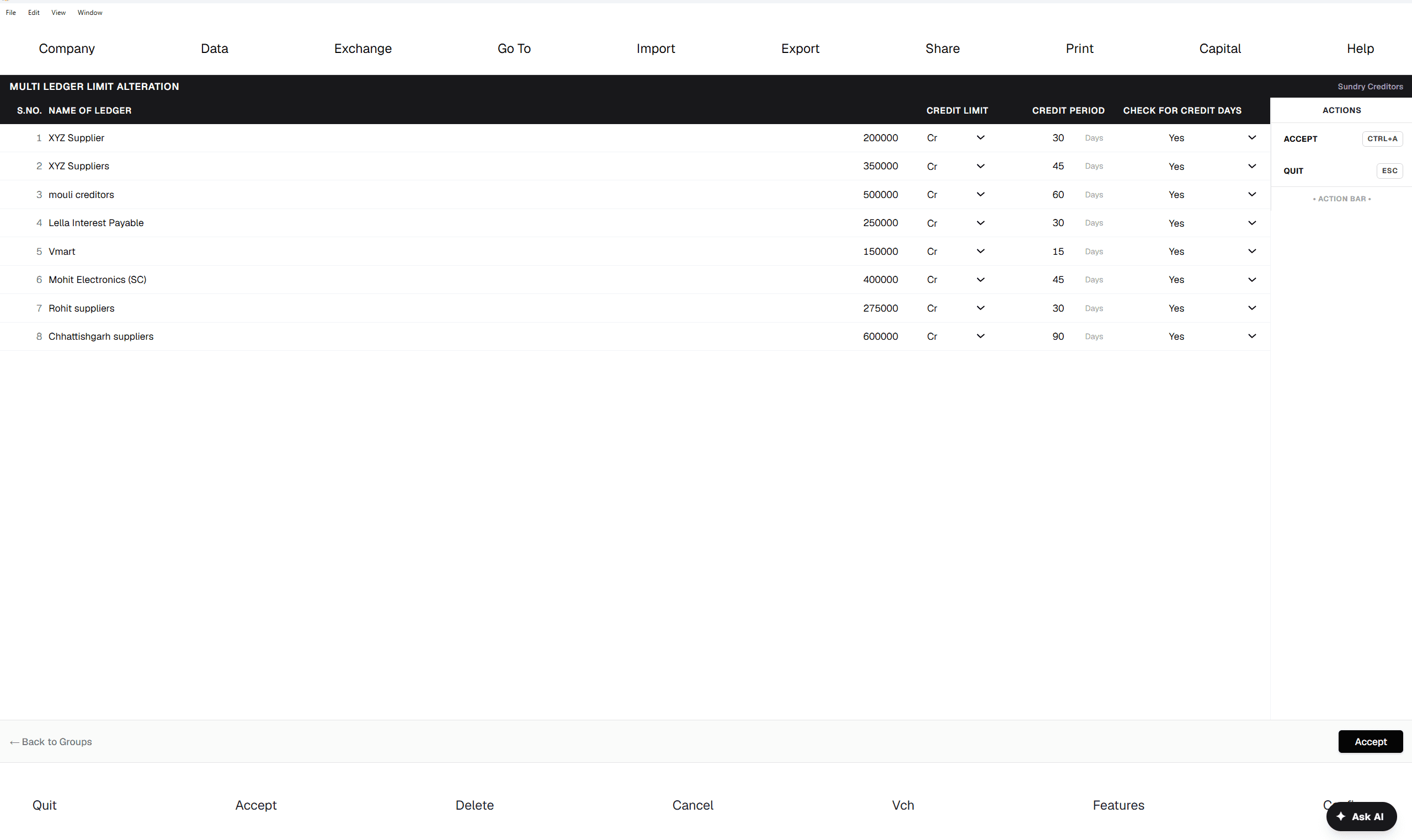
Credit Limits
- 1Open Credit Limits and pick a Group of parties.
- 2Set a Credit Limit and Credit Period, in days, per ledger in that group, and turn on Check for Credit Days if vouchers past that period should be flagged.
Masters
Currency, Pricing & Voucher Numbering
Multi-currency, quantity-break pricing, and per-voucher-type numbering rules.
Gateway → Masters → Create
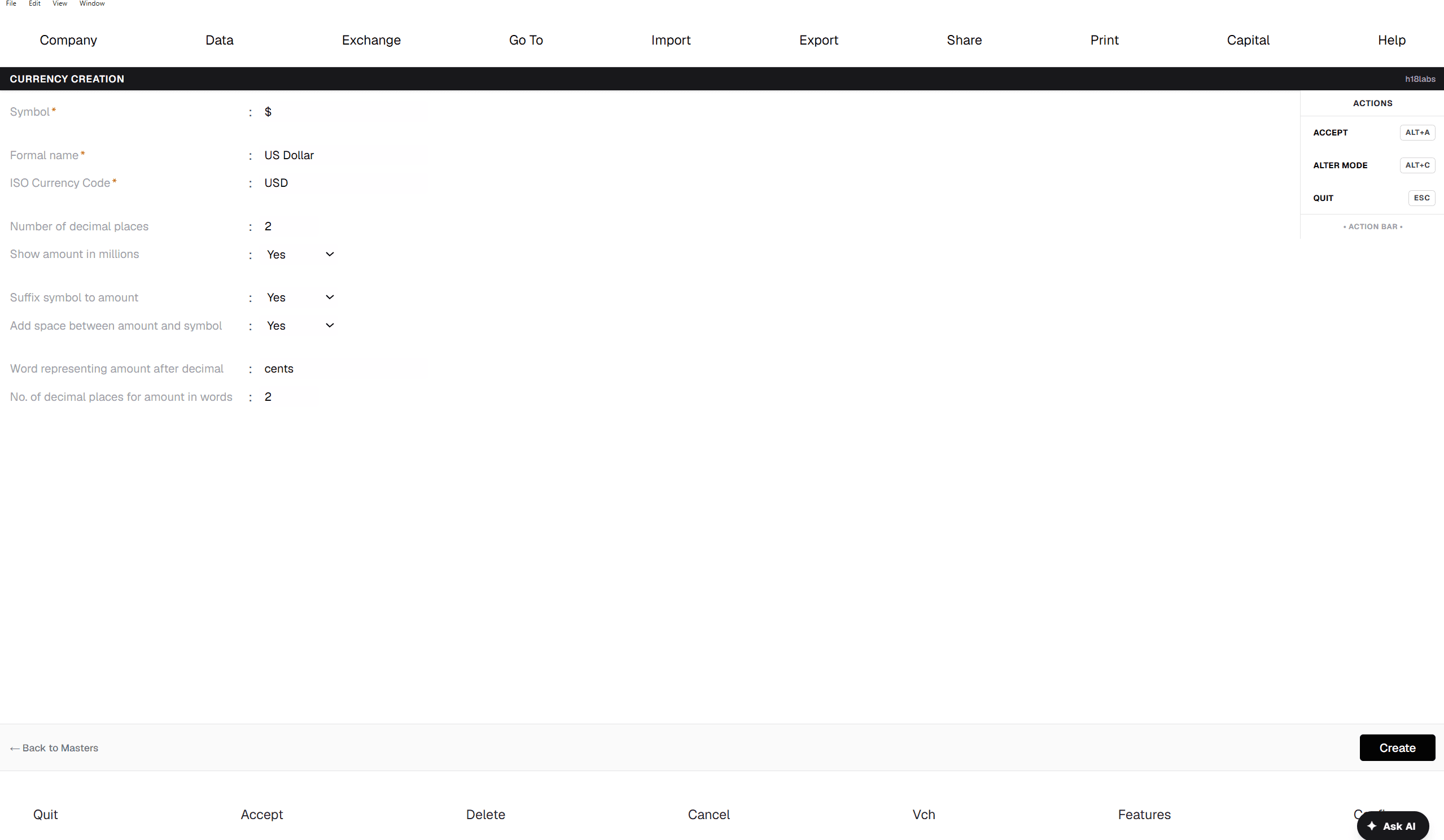
Currency
- 1Create a Currency: set its Symbol, Formal name, and ISO Currency Code (max 3 letters).
- 2Set Number of decimal places (2 by default), and — if you print amounts in words — a Word representing amount after decimal (like "Paise") and how many of those decimal places get spelled out.
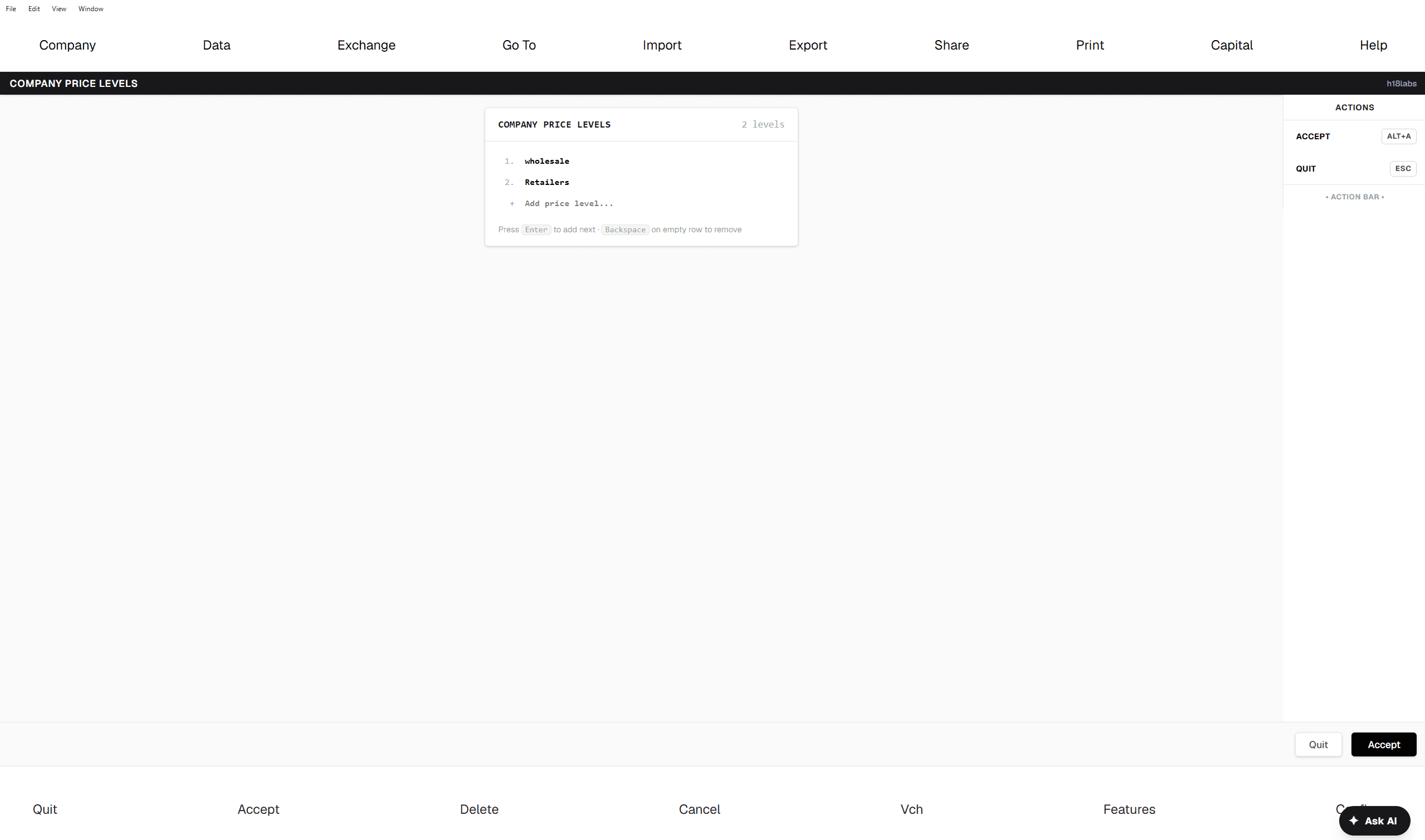
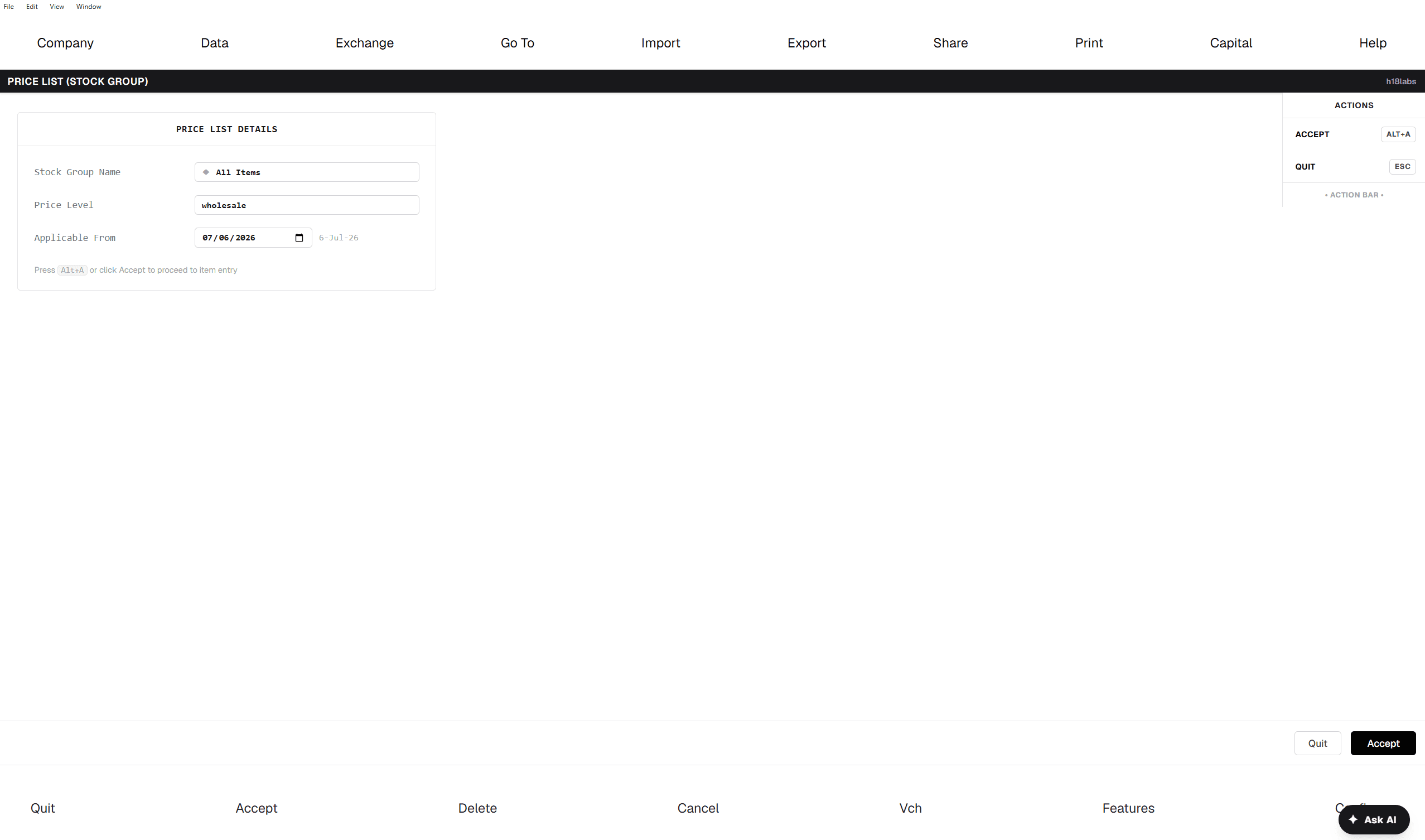
Price Levels & Price Lists
- 1Create Price Levels first — a simple named list, like Wholesale, Retail, Distributor — one per pricing tier you offer.
- 2Then create a Price List by Stock Group (or by Stock Category): pick the Stock Group, the Price Level it applies to, and an Applicable From date.
- 3Fill the rate table — Item, Qty From, Qty Less Than, Rate, Disc % — to set quantity-break pricing per item. The screen shows each item's previous rate alongside for comparison.
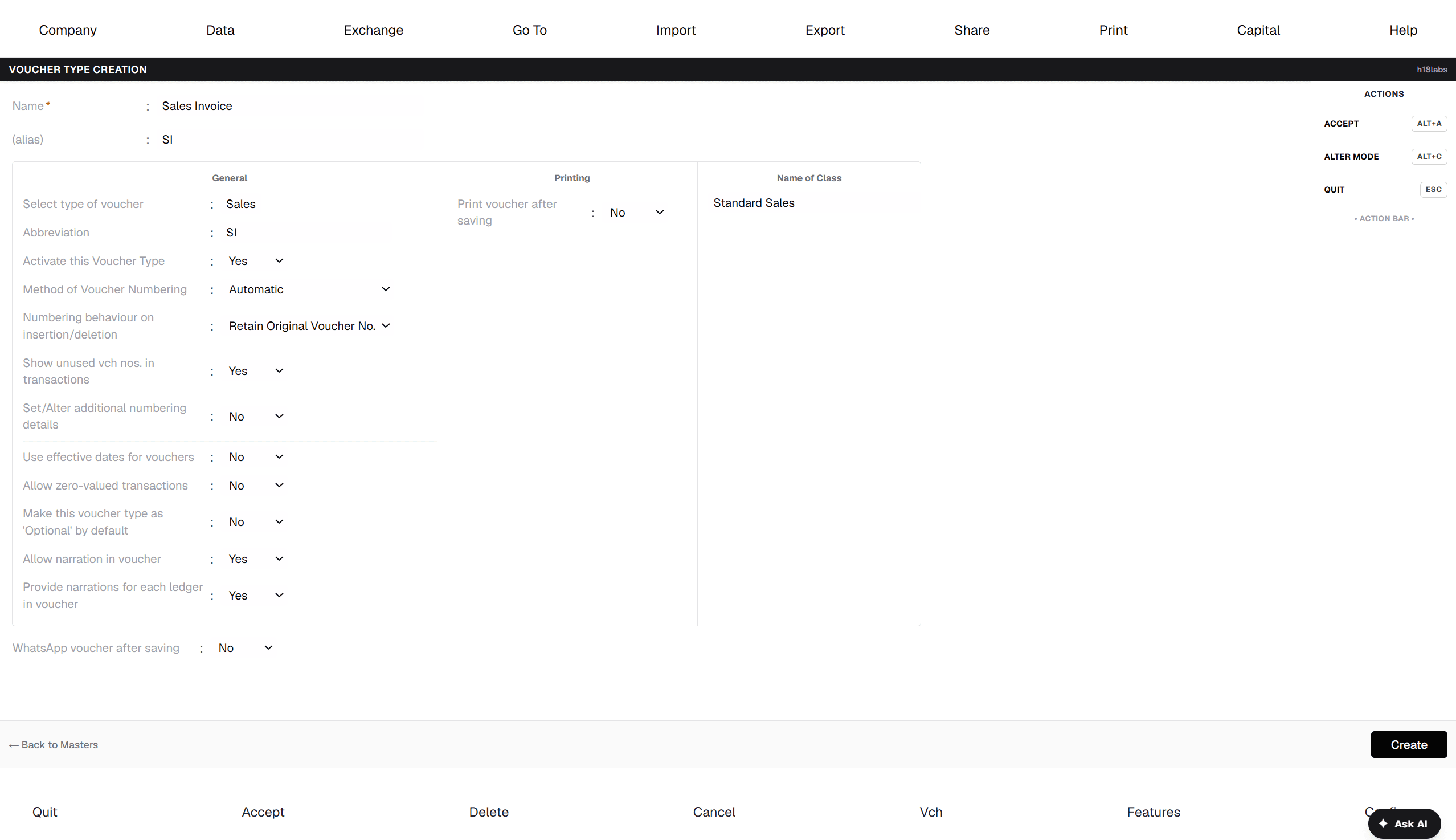
Voucher Type numbering
- 1Open Voucher Type to customise a specific type's behaviour instead of relying on the defaults — pick a Method of Voucher Numbering: Automatic, Manual, Multi-user Auto, or None.
- 2Turn on Set/Alter additional numbering details to set a Starting Number, Width, Prefix/Suffix rules, or a Restart Numbering schedule — for example, restart at 1 every financial year.
- 3Voucher Classes can be added here too, for when a class needs to be marked Use for GST Details.
Day-to-Day
Vouchers
Every transaction — sales, purchases, payments, stock movement — starts as a voucher.
Gateway → Transactions → Vouchers
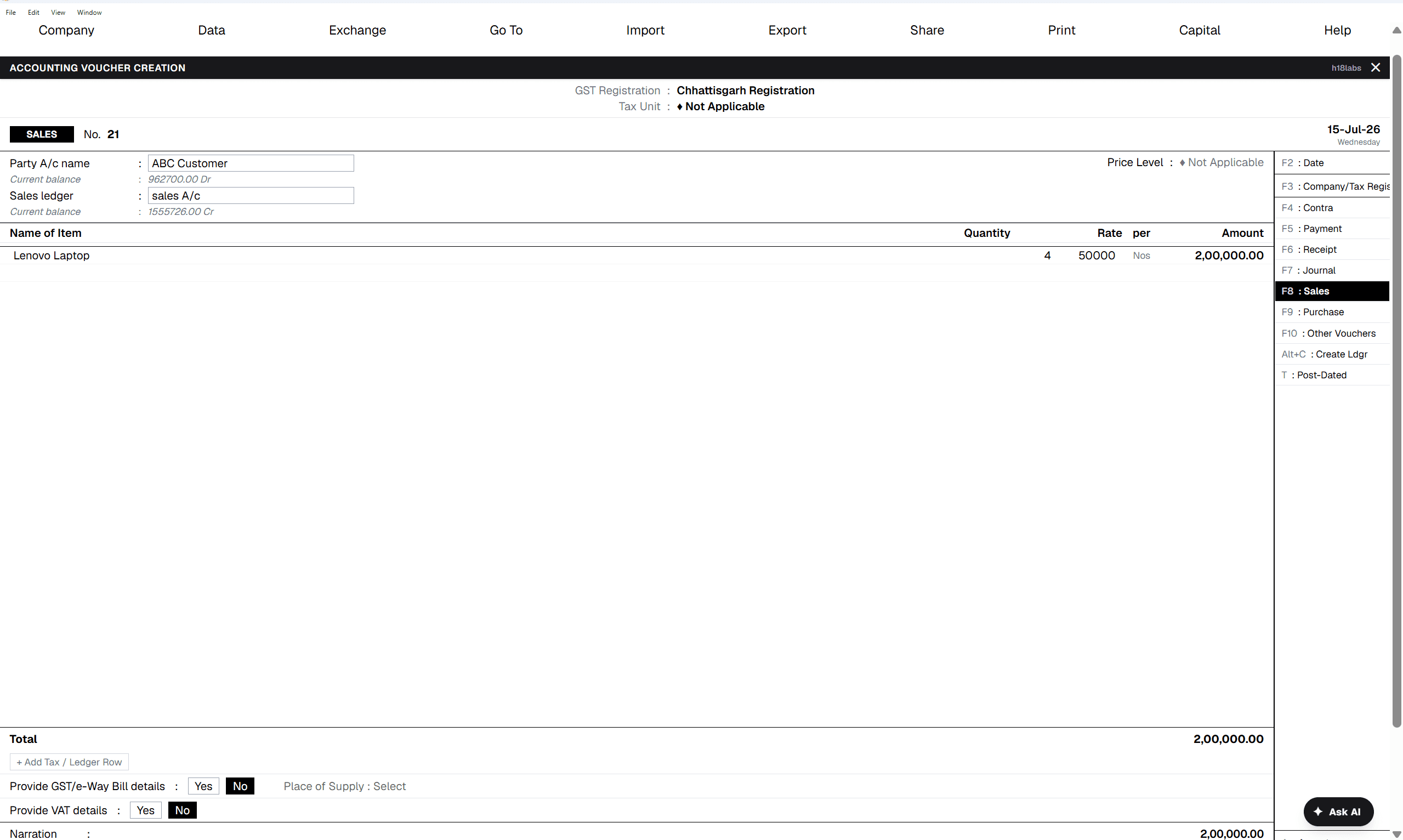
Record a Sales voucher
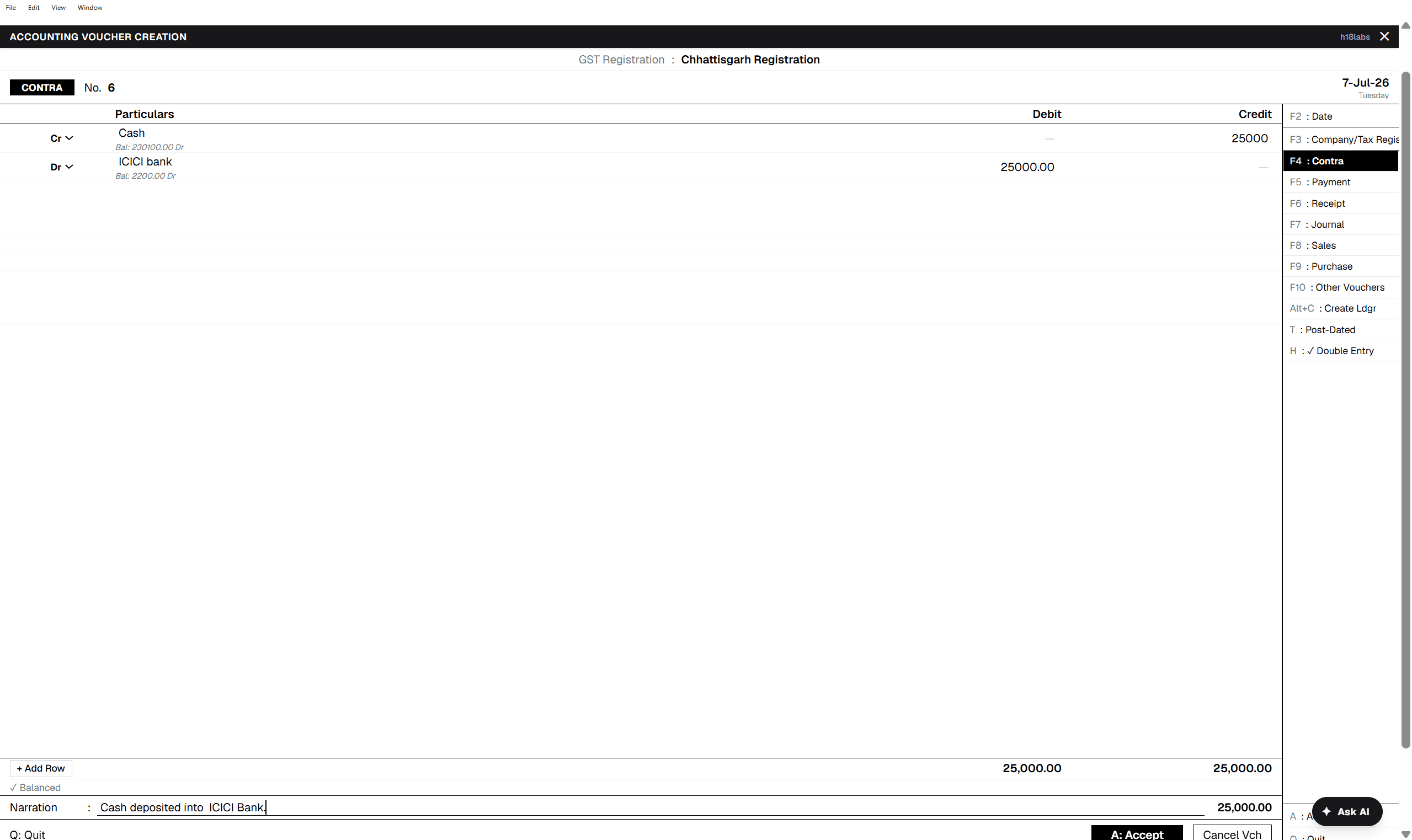
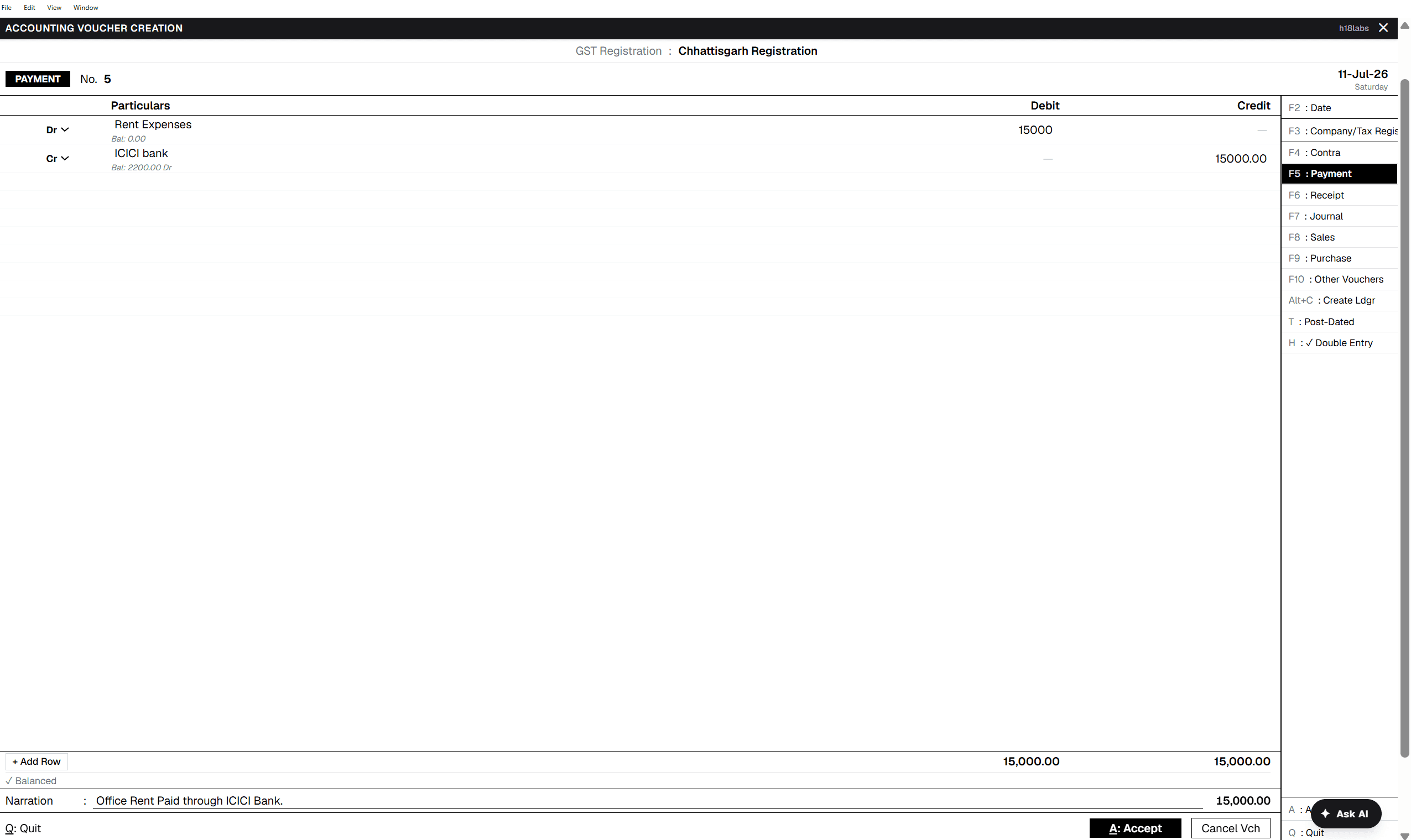
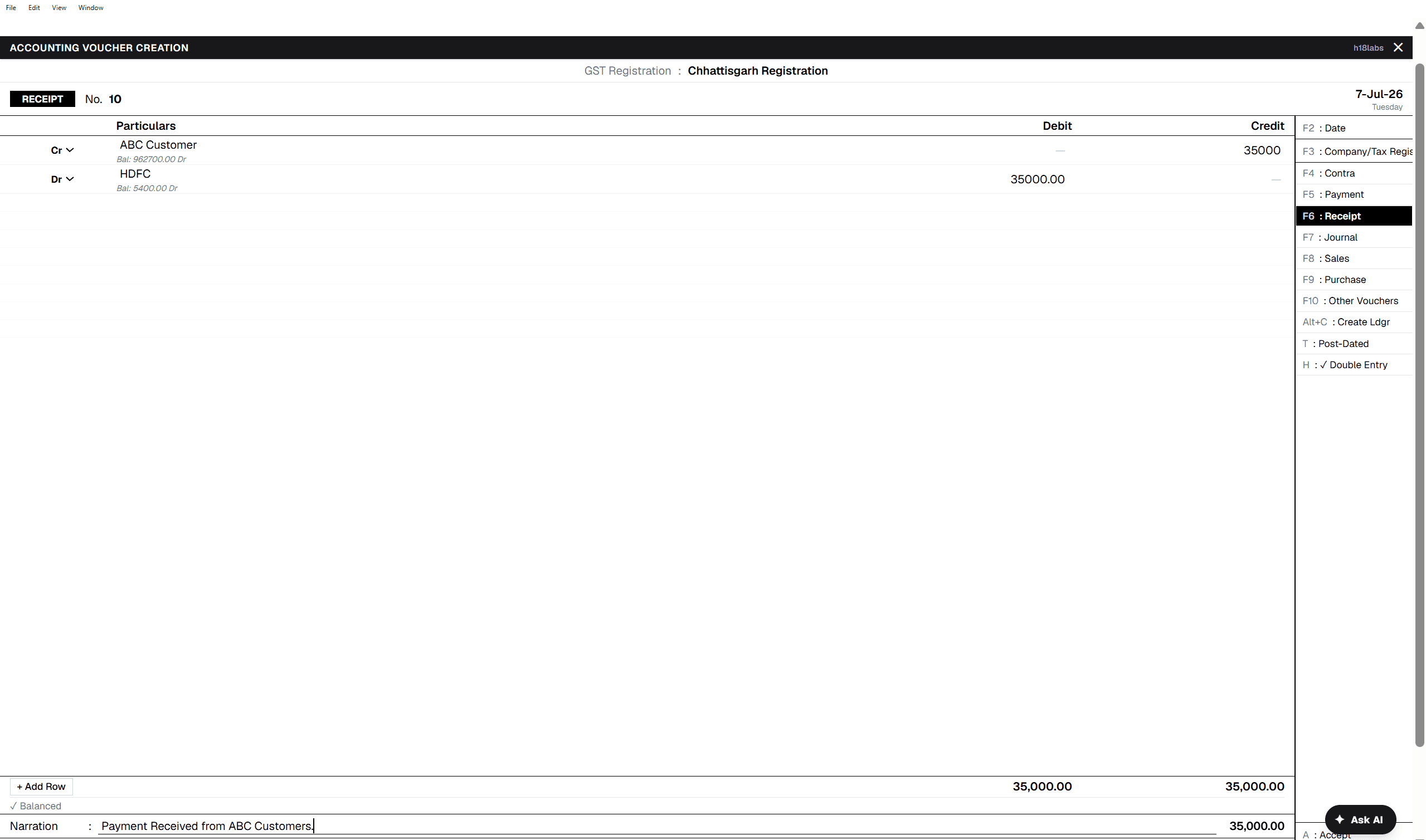
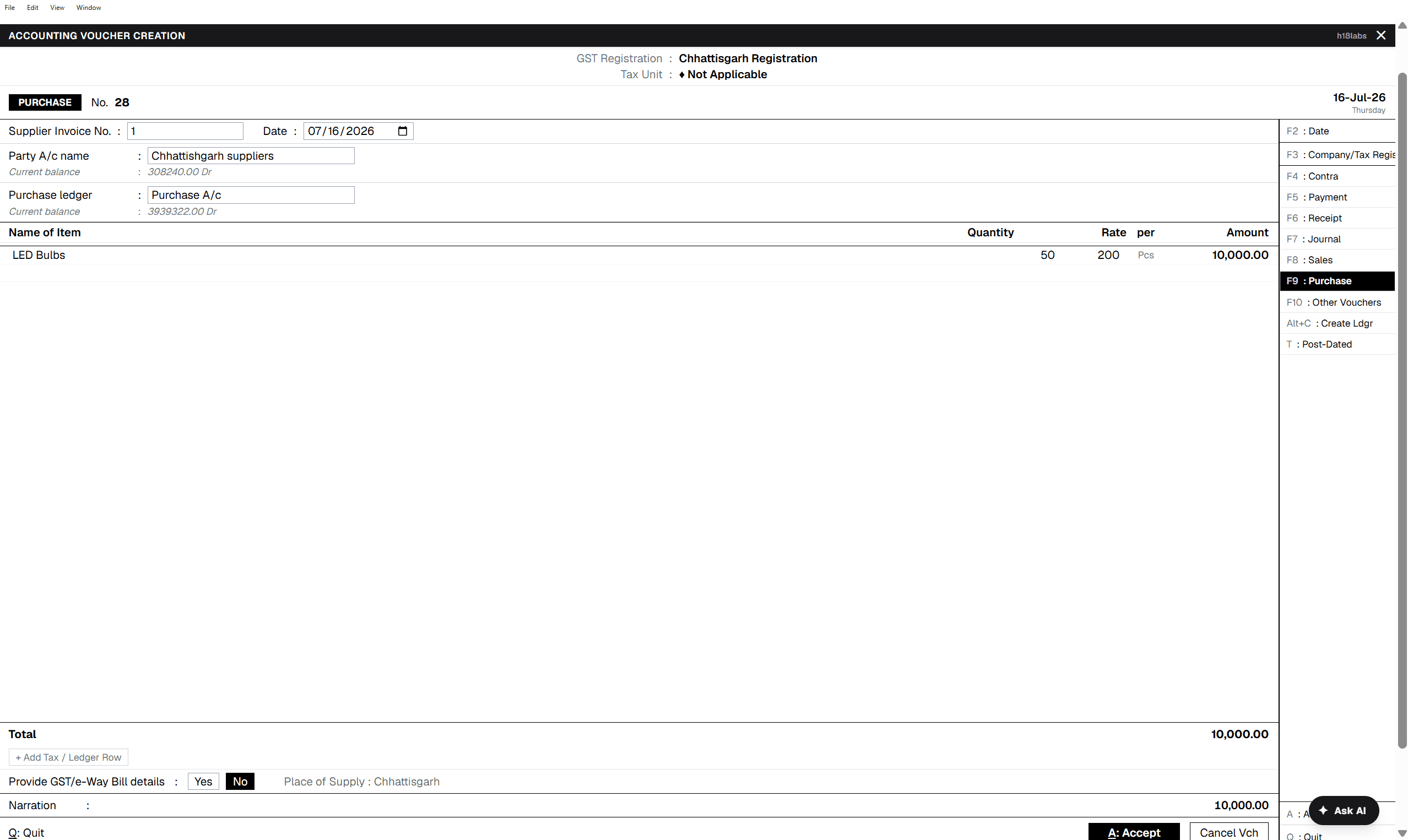
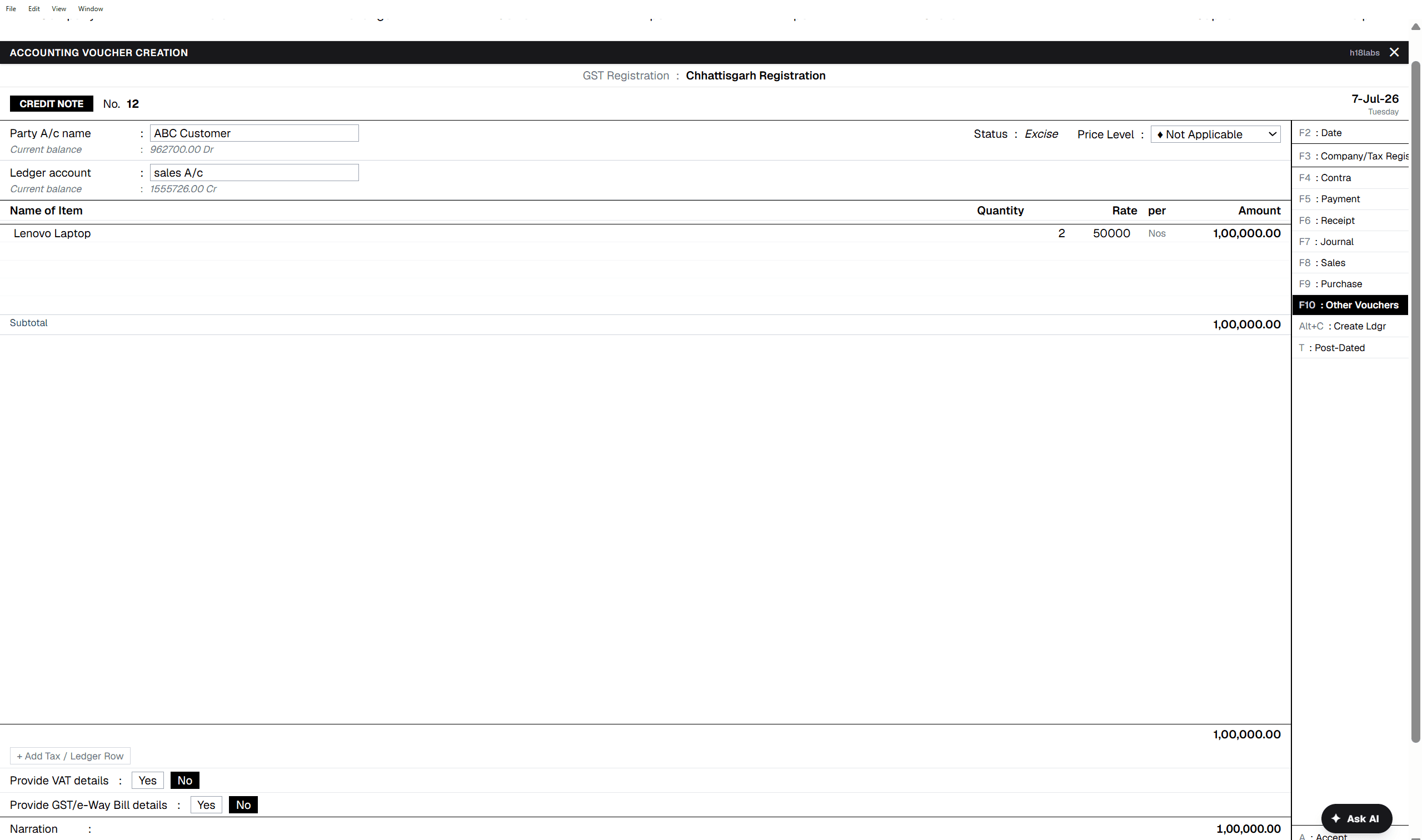
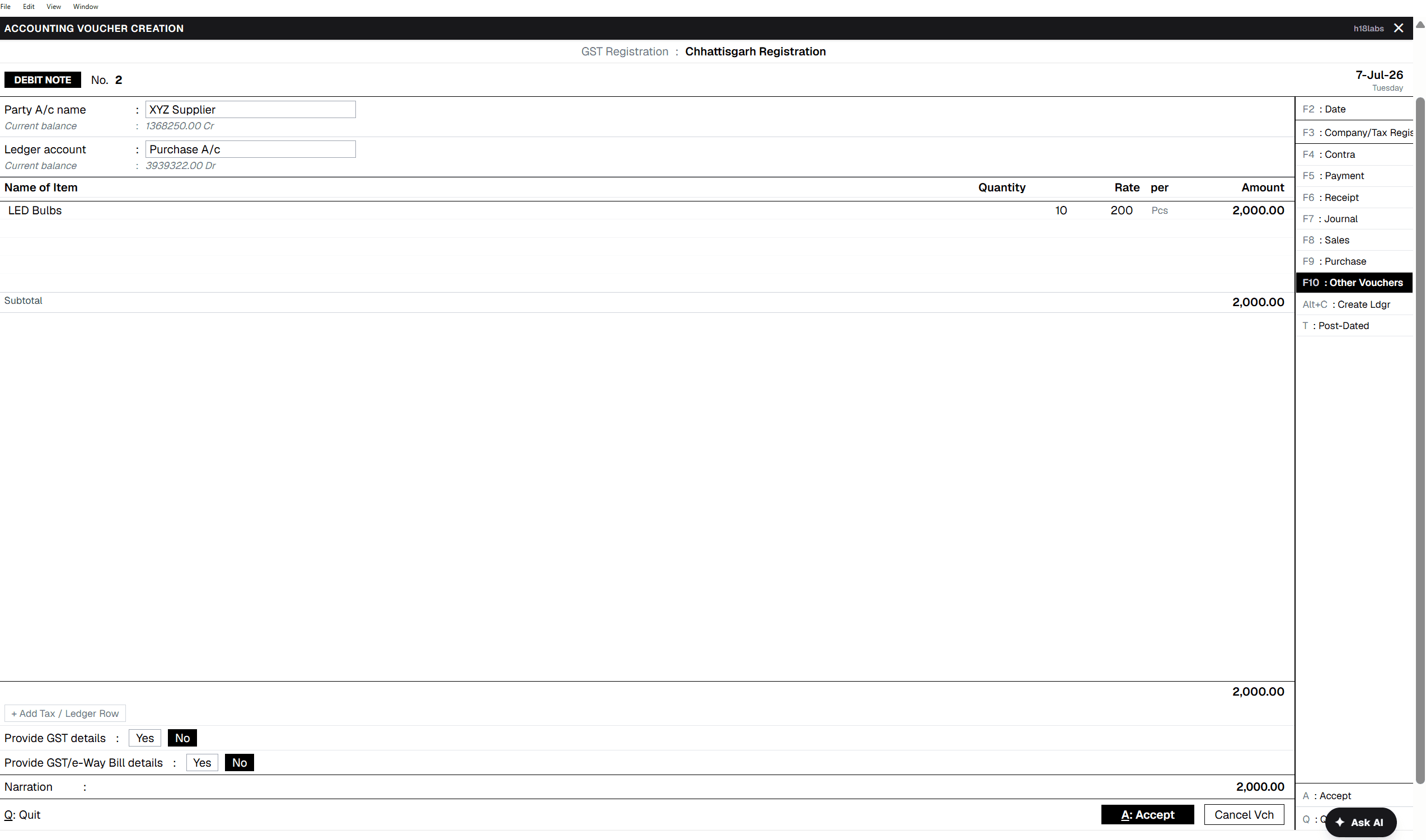
- 1Open Vouchers and press F8 for Sales (F4 Contra, F5 Payment, F6 Receipt, F7 Journal, and F9 Purchase switch to those types the same way; F10 opens everything else — Credit Note, Debit Note, Stock Journal, Physical Stock, and the order types).
- 2Select the Party A/c name from the searchable ledger list — it shows the party's current balance next to its name. Choosing a party opens the Dispatch Details popup automatically.
- 3Pick the Sales ledger, then fill the item table: Name of Item, Quantity, Rate per unit. Amount is calculated for you as you go — add as many rows as the invoice needs.
- 4Press A to Accept and save, or Q to quit without saving.
Bill-wise allocation
- 1If the party ledger is a Sundry Debtor or Creditor, accepting the voucher opens a Bill-wise Allocation popup instead of saving immediately.
- 2Choose New Ref to raise this as a fresh invoice — set a Credit Period and its Due Date is calculated for you — or Agst Ref to settle it against an existing bill from the Pending Bills list shown in the popup.
- 3The allocated amounts must add up to the voucher total before you can Accept.
Payment, Receipt, Journal, Contra
- 1These four default to single-entry mode — one Account plus a Particulars table of ledger/amount rows.
- 2Press H to switch to full double-entry mode instead, with separate Dr and Cr columns. Both sides must balance before the voucher can be saved.
Review or edit a past voucher
- 1Open Day Book. Narrow it down with Voucher Type (F4 opens a type picker), a single date (F2), or a date range (Alt+F2).
- 2Press Enter on any row to open that voucher.
- 3Any voucher can be reopened and changed — the full entry loads back exactly as it was passed, and totals and tax recalculate automatically when you save.
Keyboard shortcuts

Day-to-Day
Manufacturing & Job Work
Convert raw materials into finished goods, and track items sent out for or received from job work.
Gateway → Transactions → Vouchers → F10 → Stock Journal / Manufacturing Journal / Job Work Orders
- 1Open a Stock Journal or Manufacturing Journal voucher — both use the same split-screen layout: Source Items on the left, Destination Items on the right.
- 2On the Source side, enter what's being consumed: Name of Item, Godown, and Quantity. Rate pre-fills from the item's last purchase price, and Amount is calculated for you.
- 3On the Destination side, enter what's being produced the same way. Pressing Enter on the last row of either side adds a new one automatically.
- 4Job Work In Order and Job Work Out Order use the standard order-voucher layout, but with two differences: there's no Godown column, since job work doesn't track a specific storage location, and an Order No. field appears next to the party. Selecting a party opens an item-allocation popup to set exactly what's being sent or received under that order.
Screenshot: Stock Journal — Source Items / Destination Items split layout
Day-to-Day
Physical Stock Verification
Record what you actually counted, and compare it against the books.
Gateway → Transactions → Vouchers → F10 → Physical Stock
- 1Open Physical Stock Verification and start typing the item you just counted — it autocompletes from your stock items.
- 2Set the Godown. If the item tracks batches, pick a Batch/Lot from the Active Batches popup, or click New Number to log one that isn't in the system yet — its expiry date fills in automatically.
- 3Enter the Quantity you actually counted. Amount is a read-only figure calculated from the item's valuation, not something you type.
- 4Pressing Enter after Quantity adds another godown row for the same item, matching how stock is usually split across locations when you count it.
- This voucher only records what you counted — it doesn't post the variance against book stock automatically. If counted and book quantities differ, pass a separate adjustment (a Stock Journal or Journal voucher) to bring the books in line.
Screenshot: Physical Stock Verification — item / godown / batch / quantity rows
Day-to-Day
Banking & Reconciliation
Match your bank ledger against the actual bank statement, entry by entry.
Navbar → Exchange → Banking, or Gateway → Utilities → Banking
- 1Open Banking and choose Banking Activities to reconcile a bank ledger against its statement.
- 2Pick the bank ledger from the dropdown — it only lists ledgers under a Bank group — and click Refresh to load its entries.
- 3Each row shows Date, Voucher No., Amount, Balance, and Status. Click Reconcile on an entry, then enter its Bank reference (cheque / UTR / NEFT no.) and Bank date to mark it matched.
- 4Click Unreconcile on any entry to undo a match made by mistake.
Screenshot: Banking Activities — bank ledger reconciliation table
Reports
Financial Statements
The core statements every business needs, computed live from your vouchers — not a month-end batch job.
Gateway → Reports, or Display More Reports → Accounting
- 1Balance Sheet, Profit & Loss A/c, and Ratio Analysis sit directly on the Gateway under REPORTS — one click, no menu digging.
- 2For Trial Balance, Cash Flow, and Funds Flow, use Display More Reports → Accounting → Account Books or Statements of Accounts.
- 3Every statement opens already scoped to the current period — change the range from the date controls in the report's own header rather than a separate settings screen.
- 4Click any figure on the page to drill into the vouchers behind it, the same drill-down pattern used throughout the report suite (see Inventory & Stock Reports for the fullest example of this chain).
Ratio Analysis & Statistics
- 1Ratio Analysis lays out liquidity, profitability, solvency, and efficiency ratios as a straight read — there's no drill-down, it's a snapshot for the period.
- 2Statistics is the opposite: a live count of every Group, Ledger, Stock Item, and voucher type. Clicking any of those numbers drills straight into the underlying list — accounts open the Chart of Accounts, voucher types open that type's register.
Screenshot: Balance Sheet with a figure mid-drill-down
Reports
Inventory & Stock Reports
See what you have, where it is, and how fast it's moving — three keystrokes from a summary number to the voucher behind it.
Display More Reports → Inventory → Inventory Books → Stock Item
- 1Open Stock Item. A selection popup appears — type to search by Name of Item, or use the ↑ / ↓ arrows, then press Enter. If the item doesn't exist yet, click Create right there.
- 2You land on the Stock Item Monthly Summary — one row per month, with Opening Balance, Inwards Qty/Value, Outwards Qty/Value, and Closing Qty/Value, plus a bar chart above the table.
- 3Press Ctrl+H to change the granularity — Daily, Weekly, Fortnightly, 4-Week, Monthly, Quarterly, or Half-Yearly. Press F7 to show or hide profit on the same screen.
- 4Press Enter on any row to drill into Stock Item Vouchers for that period — the individual transactions behind that number, with Date, Voucher Type, Voucher Number, and the same Qty/Value columns.
- 5Press Enter again on a voucher row to open the actual voucher.
- 6Esc or Backspace steps back exactly one level at a time — Vouchers → Summary → the item-search popup — there's no breadcrumb to click, just back-out-as-you-came.
- 7Press F4 from anywhere in this chain to jump straight back to item search and look up something else; Ctrl+S saves your current granularity and filters as a view for next time.
Also built on this same pattern
- 1Movement Analysis, Stock Ageing, Reorder Status, Batch reports, and Cost Analysis all use the identical summary → vouchers → voucher drill chain — only the columns on the summary screen change per report.
- 2Stock Summary and Godown Summary are valued by FIFO or Weighted Average, set per stock item.
Keyboard shortcuts
Screenshot: Stock Item Monthly Summary with the bar chart and Change View panel
Reports
Outstandings & Bills
Who owes you, who you owe, and for how long — with nothing to configure per transaction.
Display More Reports → Accounting → Statements of Accounts → Outstandings
- 1Bills Receivable and Bills Payable list every pending bill with an ageing bucket — 0–30, 31–60, 61–90, and 90+ days.
- 2Ledger-wise and Group-wise Outstandings roll the same bills up by party or account. Press Enter on any row to drill down to the individual bill, and again to reach the voucher that raised it.
- 3Order Outstanding tracks pending sales and purchase orders using the same drill pattern.
- 4None of this needs setup — the moment a voucher posts to a Sundry Debtor or Creditor ledger, its bill reference is tracked automatically through the Bill-wise Allocation popup covered under Vouchers.
Screenshot: Bills Receivable with ageing buckets
Reports
Sales, Purchase & Party Reports
The same transactions, cut by party, item, GST rate, state, or salesperson — whichever grouping answers your question.
Display More Reports → Sales, Purchase & Party Analysis
- 1Sales Register and Purchase Register come in several cuts — Detailed, Monthly, Party-wise, Item-wise, GST-wise, State-wise, and more — pick whichever grouping answers your question instead of building a custom filter.
- 2Party Analysis rolls the same data up by customer or supplier: Customer/Supplier Summary, Profitability, Top and Dormant parties, and Credit Analysis.
- 3Order Management reports — Order to Invoice, Pending/Cancelled/Preclosed Orders — track fulfilment once you're using Sales or Purchase Orders.
- 4Sales Return and Purchase Return registers, plus Discount and Freight analysis, cover the adjustment side of the same transactions.
Screenshot: Sales Register — Party-wise variant
Reports
Cash & Bank Reports
Every cash and bank movement for the period, scoped to one ledger at a time.
Display More Reports → Cash, Bank, Finance & Banking
- 1Cash Book and Bank Book, plus their Summary variants, list every cash or bank movement for the period — the same Date / Party / Amount / Balance shape as a Day Book, just scoped to one ledger.
- 2Cheque Register and Post-dated Cheque reports track cheques issued and received.
- 3UPI and NEFT/RTGS reports split digital payments out from the general Bank Book.
- 4To actually reconcile a bank account against its statement rather than just read the book, use Banking → Banking Activities — see Banking & Reconciliation.
Screenshot: Bank Book — Detailed variant
Compliance
GST Filing & e-Invoicing
GST isn't a separate module — it's computed on every voucher, and filing happens from one workspace.
Compliance workspace — e-Invoice, e-Way Bill, and GST Filing tabs
e-Invoice and e-Way Bill
- 1These are generated per voucher, not from the Compliance workspace directly. Open a Sales voucher and use its I: e-Invoice action to raise an IRN, or E: e-Way Bill to raise one — the latter asks for Distance, Mode, and Vehicle No. first.
- 2The Compliance workspace's e-Invoice and e-Way Bill tabs then list everything you've generated — Invoice No., Date, IRN/EWB No., Status — with a Refresh button to pull the latest state from the portal.
Filing a GST return
- 1Switch to the GST Filing tab. Choose the Return — GSTR-1 or GSTR-3B — and enter the Period as MMYYYY, for example 062026.
- 2Click Prepare to compute the return locally from your vouchers. Nothing leaves the app at this step.
- 3Click Save to portal to upload it to the GSP — this step is reversible, so it's safe to re-check before filing.
- 4Click File only when you're ready to commit. You'll be asked to confirm, then to enter an OTP — this step is irreversible.
- 5GSTR-2A / 2B reconciliation runs from the same workspace, matching what you've filed against what's on the GST portal so mismatches surface before the deadline instead of after.
- Filing needs the company's GST Registration master (Masters → Create → GST Registration) and portal credentials set up once — the workspace shows a banner if either is missing.
Screenshot: GST Filing tab — Prepare / Save to portal / File controls
Compliance
GST Reports
See exactly what a return will contain before you file it, and catch data problems that would get it rejected.
Display More Reports → GST Reports
- 1GST Reports is a large menu of viewing and analysis screens, separate from the Prepare / Save to portal / File workflow covered under GST Filing & e-Invoicing — use it to inspect a return before you commit to filing it.
- 2GSTR-1 and GSTR-3B each break down into a dozen-plus views — B2B, B2C Large/Small, Credit/Debit Notes, HSN Summary, and more — matching the sections of the actual return.
- 3GSTR-2A / 2B Reconciliation shows books-vs-portal comparisons, and GST Challan Reconciliation checks payments against challans, so mismatches are visible before filing rather than after.
- 4Exceptions — Missing HSN/SAC, Missing GSTIN, GSTIN Validation, Place of Supply — flag exactly the kind of data problems that would otherwise cause a return to bounce.
Screenshot: GSTR-1 HSN Summary view
Compliance
TDS & TCS
The statutory forms, generated straight from your deduction and collection entries.
Display More Reports → TDS Reports / TCS Reports
- 1TDS Reports and TCS Reports generate the statutory forms — 26Q, 27Q, and 24Q for TDS, 27EQ for TCS — from your deduction and collection entries.
- 2Outstandings break down by Ledger, Nature of Payment/Goods, or Party, so what's due is visible before the challan deadline.
- 3Challan Reconciliation checks what you've paid against what's been deposited, and the Exceptions views — Ledgers Without PAN, Section Number mismatches — catch the same kind of data problems GST Reports flags on the GST side.
Screenshot: TDS Form 26Q generation view
Compliance
Payroll & HR
Configure a salary structure once; every payroll run after that posts straight to the accounts.
Gateway → Masters → Create → Employee, then Reports → Payroll & HR
Set up an employee
- 1Create an Employee — Name is the only required field. Fill in Employee Code, Designation, Date of Joining, and Employee Group alongside it.
- 2Turn on "Provide Bank Details" if salary is paid by transfer — it reveals Account Number, Bank Name, Branch, and IFSC Code.
- 3Fill in Statutory Details as applicable — PAN, Aadhaar, UAN, PF Account, ESI Number.
- 4Turn on "Define Salary Details" to open the salary editor right there, or set it up afterwards from Salary Structure instead.
Build the salary structure
- 1Open Salary Structure, pick the Employee, and set Effective From.
- 2Fill the Pay Heads table — Basic, HRA, PF deduction, and so on — with a Calculation Type and Rate for each. Click Load example to start from a template instead of building it blank.
- 3Click Validate to check the entry, then Create entry to save it. PF, ESI, and Professional Tax are computed automatically from these figures on every payroll run.
Run payroll and print a pay slip
- 1Once a salary structure exists, running payroll for the period posts a Payroll voucher directly to the accounts — no separate reconciliation step.
- 2Pay Slip lives under Reports → Payroll & HR, not as a voucher — open it for one employee's detailed earnings and deductions, or use Multi Pay Slip to print a whole group at once.
Screenshot: Salary Structure — Pay Heads table with Load example
Automation
WhatsApp CRM
Share invoices and talk to customers on WhatsApp, without leaving the voucher screen.
Voucher View → Send on WhatsApp
- 1Open any voucher — typically a Sales invoice — in Voucher View, and use the Send on WhatsApp action.
- 2Recipient number auto-fills from the party ledger's phone number if one's on file; edit it if you're sending elsewhere.
- 3Leave "Attach invoice PDF" checked to deliver the voucher as a formatted PDF alongside the message text.
- 4Click Send — the invoice goes out over the WhatsApp Business API.
- 5Replies land in the shared Inbox tab of the WhatsApp workspace, alongside Compose, Campaigns, Templates, and Message Log for anything beyond one-off invoice sends.
Screenshot: Send on WhatsApp modal with invoice preview
Automation
AI Copilot & Automation
An AI layer over the same report engine and voucher pipeline everything else uses — nothing bypasses the books.
Gateway → Utilities → AI Copilot
Chat
- 1Open Copilot and stay on the Chat tab. The first time, add an Anthropic (Claude) or OpenAI-compatible API key under AI Model and click Save & verify.
- 2Ask a question in plain language — "What is my cash balance?" or "Show the trial balance" — directly in the composer.
- 3If the assistant proposes an action rather than just answering, it shows up in an amber box under its reply with an Approve button. Nothing is created until you click it.
Assisted Entry
- 1Switch to the Assisted Entry tab — this doesn't need a chat model connected at all.
- 2Click Load example to start from a template for the voucher type you want, then edit the JSON entry by hand.
- 3Click Validate — it checks the entry against the same rules a manual voucher follows (ledger names, GST, double-entry balance) and tells you exactly what's wrong if it doesn't pass.
- 4Once it validates, click Create entry. It goes through the identical voucher pipeline as anything typed in by hand, so an AI-assembled entry is exactly as safe as a manual one.
- A Model Context Protocol (MCP) server also exposes company data to external AI agents and tools, under the same access rules as the app itself — see the Roadmap for where this is headed.
Screenshot: Assisted Entry — JSON editor with Validate / Create entry
Reference
Multi-Company & Security
One login, many businesses, full separation between them.
Navbar → Company
- 1Open the Company menu and choose Change to see every company on this account and switch to one.
- 2Choose Create to start a new company (see Getting Started), or Alter to edit the current one's details.
- 3Choose Select to clear the current company so you're prompted to choose again — useful when handing the machine to someone else.
- 4Switching companies reloads its financial years automatically, and every open screen — reports, vouchers, masters — re-scopes to the newly selected company. Nothing from one company is ever visible while another is active.
- Role-based access is assignable per company and per module. Audit Trail and Edit Log record every change in an immutable hash chain, and backups run daily.
Screenshot: Company change screen listing multiple companies
Reference
Audit Trail, Edit Log & Exceptions
Every change is recorded, and the things that need attention surface on their own instead of waiting to be noticed.
Display More Reports → Audit, Edit Log & Security
- 1Edit Log and Tally Audit Listing record who changed what and when — every voucher and master edit is captured, backed by an immutable hash chain so the log itself can't be quietly altered.
- 2Voucher Audit and Ledger Audit narrow the same log to one transaction type or account; Deleted and Altered reports isolate just those two kinds of change.
- 3Negative Stock and the Overdue Receivables/Payables exception views (see also Outstandings & Bills) surface data that needs attention without anyone having to notice it buried in a full report.
- 4User Activity and Security reports track logins and access — useful once more than one person is working in the same company.
Screenshot: Edit Log — voucher alteration history
Roadmap
What's next — including AI agents.
Paesa already ships an AI Copilot, an Assisted Entry endpoint, and an MCP server that exposes company data to external agents. The two tracks below are where that goes next: closing the remaining Tally-parity gaps, and turning the AI layer from something you ask questions to into something that can act — under permissions you control.
Coming soon
Sales & Purchase order processing
Full order lines, numbering, and due dates, with fulfilment tracking back to the invoice.
Voucher Classes
Automatic ledger allocation and rounding rules per voucher type.
Bill of Materials & manufacturing
Component consumption computed automatically from a BOM when a production voucher is passed.
Interest calculation
Simple and compound interest on overdue bills, with a dedicated interest report.
Reversing journals & scenarios
Provisional entries that apply only inside a chosen scenario, never touching the real books.
User-defined voucher numbering
Configurable numbering series per voucher type, instead of a fixed default.
Backup, restore & data migration
The Data menu already has the right entries — Backup, Restore, Split, Migrate, Repair — wiring them to working screens is next.
Company security & Tally Vault
Password-protecting a company and setting per-user access levels is on the menu today; the screens and enforcement behind it aren't built yet.
AI agents — the next phasePlanned
Autonomous reconciliation agent
Matches bank statements to the bank book on its own and surfaces only the exceptions that need a human decision.
Anomaly detection agent
Watches new vouchers continuously — duplicate bills, round-number journals, off-hours edits — and flags them as they happen, not just when a report is run.
Close-the-books agent
Runs the month-end checklist — accruals, depreciation, GST reconciliation — and hands back a short list of exceptions instead of a blank checklist.
Natural-language reporting, fully autonomous
Today's Copilot chat answers questions across the report engine. The next step is letting it compose new views on its own — no report has to exist ahead of time.
Third-party agents over MCP
The MCP server already lets any MCP-aware agent read company data. Next: a permission model so external agents — Claude, ChatGPT, or an internal tool — can act, not just read, within scopes you explicitly grant.
Approval-gated agent actions
Every agent-initiated voucher will keep going through the same validation and double-entry path Assisted Entry uses today — read access can be automatic, write access stays opt-in and reviewable.
Have a workflow you wish an agent could just handle for you? Tell us — the roadmap above is ordered by what businesses actually ask for.